Your category ranking is your position on the Shopify App Store category pages your app is listed in. Shopify shows the page but never your position on it, and keeps no history. To track it, you need your position in each category every day, kept over time. AppstorePulse does that from its daily App Store data: your rank in every category, your competitors' ranks next to yours, and on Pro, why you moved.
Before you start
- An AppstorePulse account with your app added. Your category position shows on every plan, including Free.
- A Starter or Pro plan for the history chart, the comparison with competitors and the daily email.
- A Pro plan to see why your category rank moved.
Why category ranking matters
Merchants who don't know what to search for browse categories. A high spot on your category page puts you in front of merchants who haven't picked a solution yet.
Shopify's docs say positive reviews help apps appear higher in search results and on category pages, and that Built for Shopify apps can be recommended in the first collection merchants see on category pages. Beyond that, Shopify doesn't publish how the order is set, so the only way to know where you stand is to check.
Doing it by hand
Open your category page on the App Store and count down until you find your app. Write the position and the date in a spreadsheet. Do the same for each category you're listed in, and for each competitor you want to compare with.
Long category pages take minutes to count, and the order changes. After a few weeks you'll have gaps, and when you drop you won't know whether a competitor passed you or the whole page moved.
The full walkthrough
See your position on the dashboard
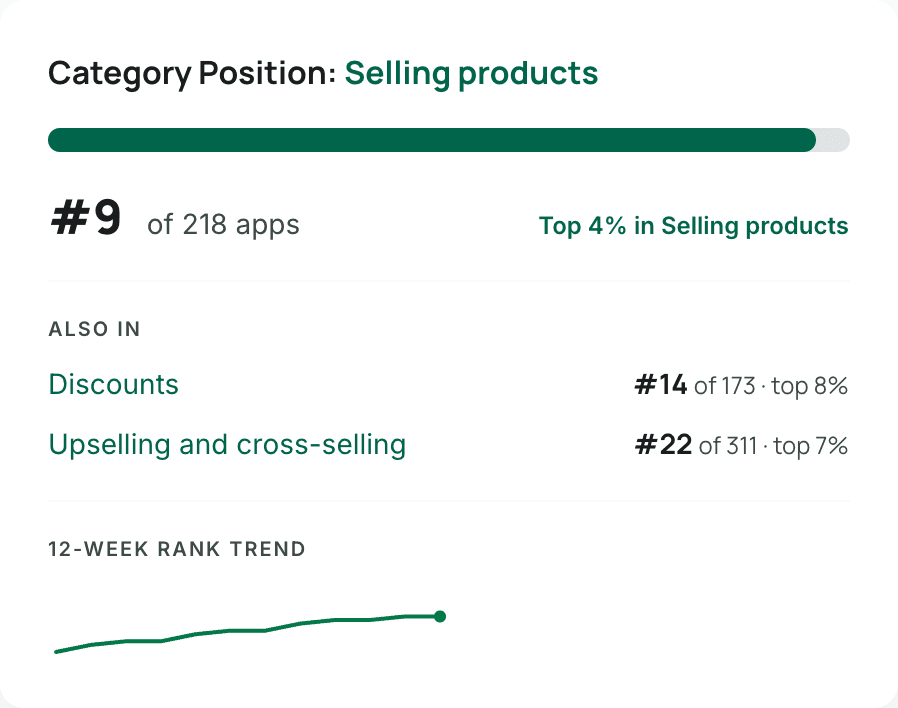
Open Dashboard. The Category Position card shows your rank in your main category, out of how many apps, and the share of the category you beat. Below, Also in lists your rank in your other categories, and a line shows your rank trend over 12 weeks.
Compare your category ranks with competitors
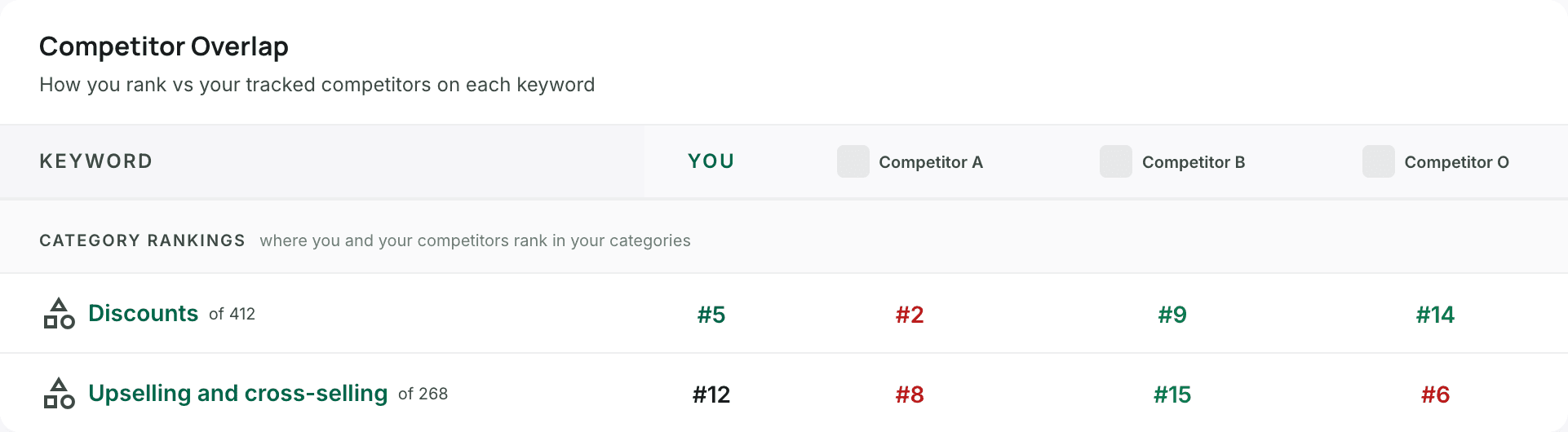
Open Keywords and scroll to Competitor Overlap. Under the keywords, Category Rankings shows where you and each tracked competitor sit in your categories. A red rank means that competitor is above you, green means you lead.
Follow your category rank over time
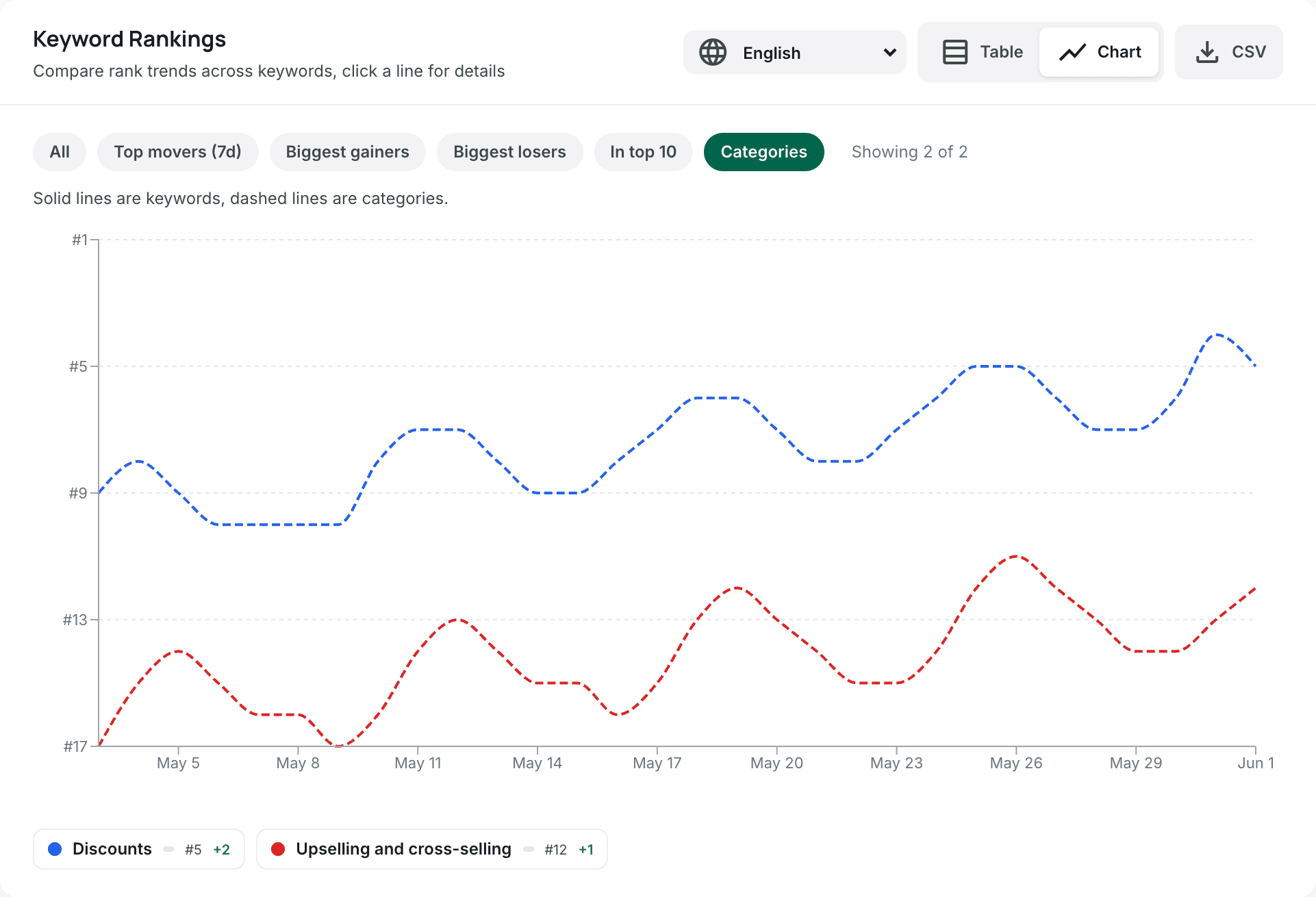
On Starter and Pro, open Keywords, switch Keyword Rankings to Chart and pick Categories. Each category is a dashed line, so you can see when you climbed or slipped and line it up with what you changed.
- History goes back 90 days on Starter and a year on Pro.
- Pick All to see your categories and your keywords on the same chart.
See why you moved (Pro)
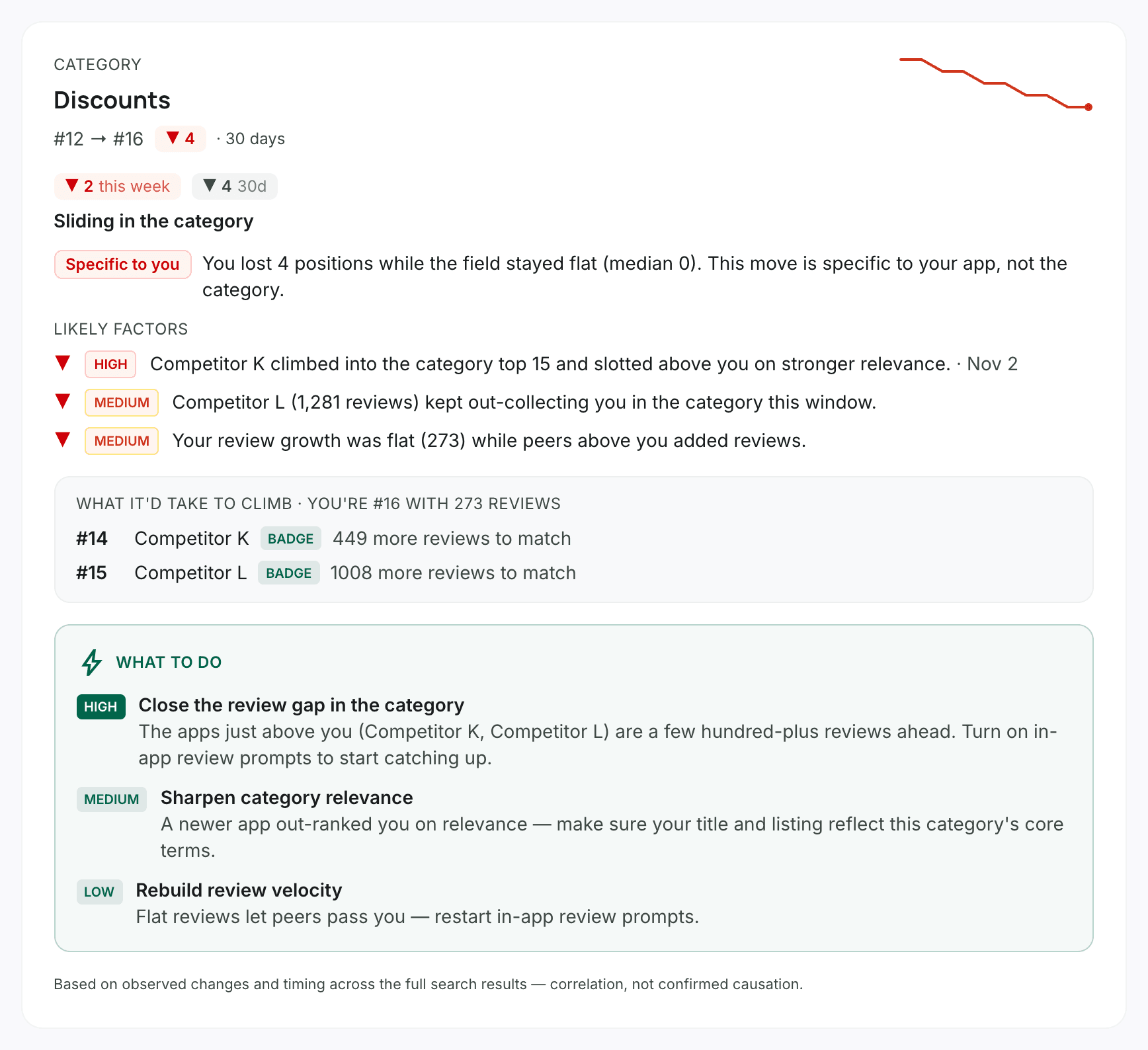
Click a category on the chart, or on the Category Position card. The movement page compares your move with the rest of the category, lists the likely factors, shows how many reviews you need to pass the apps just above you, and what to do first.
Get your category ranks by email
On Starter and Pro, open Settings, then Email Alerts, and turn on Category rankings. Your daily email then shows your rank in your main and other categories, and how it moved since the day before.
Frequently asked
Does Shopify show my app's category ranking?
No. The App Store shows each category page, but not your position on it or how it changed over time.
How often is my category rank updated?
Daily. Each day adds a new position to your history, for every category you're listed in.
My app is in several categories. Which one is tracked?
All of them. The Category Position card shows your main category first and the others under Also in.
What helps an app rank higher on a category page?
Shopify's docs name positive reviews and the Built for Shopify badge. On Pro, the movement page shows which apps passed you and how many reviews it would take to pass them back.
Which plan do I need?
Your category position and its 12-week trend are on every plan. The history chart, the comparison with competitors and the daily email are on Starter and Pro. The reasons behind a move are on Pro.