Shopify tells you what a merchant searched when they land on your listing, and it tells you when a store installs. It never links the two, so no Shopify report shows revenue per keyword. To get it, you join three sources: your listing's Google Analytics (the search), a BigQuery export (to tie each install to the visit before it) and the Shopify Partner API (what each store paid). AppstorePulse does the joining. Connect them once and Listing Analytics shows installs, uninstalls, paying stores and revenue for every keyword.
Before you start
- A Starter or Pro plan. Install sources are included in both.
- Google Analytics 4 on your app listing, with the Measurement Protocol API secret. If you haven't done it yet, follow our tutorial: Connect Google Analytics to your Shopify app listing.
- A Google Cloud project with billing turned on, for the BigQuery export. Listing traffic usually stays under $1 a month.
- Access to your Shopify Partner organization, to create a Partner API client.
- Data starts from the day you link BigQuery. Older visits aren't exported, so start early.
Why Shopify doesn't show revenue per keyword
When a merchant clicks your app in App Store search results, Shopify adds the search to your listing URL: surface_type is search and surface_detail is the merchant's search query. Your listing's Google Analytics records that visit.
When the store installs, Shopify sends a separate shopify_app_install event with four fields: api_key, shop_id, shop_name and shop_url. No search, no source. And the money lives in a third place, the Partner API, which knows what each store paid but not how it found you.
So Google Analytics can count visits per search, and the Partner Dashboard can show earnings per store, but neither can tell you that the merchants from one search paid you thousands while the ones from another all uninstalled within a week.
Doing it by hand
It is possible without a tool. Turn on the GA4 export to BigQuery, write SQL that links each install event to the same visitor's earlier listing visit, read the search query from that visit, then match each store's shop URL to its charges from the Partner API. After that, keep it running every day as stores pay, upgrade and uninstall.
Expect some installs you can't trace: ad blockers, refused cookies and direct install links leave no visit to link to. Count them as unknown rather than guessing, so your totals still match Shopify's install count.
Installs alone can mislead you. Shopify's algorithm considers both install and uninstall rates when it ranks apps, so a keyword that brings installs that uninstall within days is not a good keyword. That's why the useful number is revenue, not installs.
The full walkthrough
Add Google Analytics to your app listing
This is where the search query comes from. Shopify sends your listing traffic and install events to your own GA4 property.
- In Google Analytics, create a GA4 property and a web data stream for your listing URL, and copy the Measurement ID (G-XXXXXXXXXX).
- In the same stream, create a Measurement Protocol API secret. Shopify needs it to send installs server-side.
- In your Partner Dashboard, open your app listing and paste both into the Google Analytics fields, then save.
- In AppstorePulse, open Settings, connect Google Analytics and pick that property for your app. Our full tutorial covers each click.
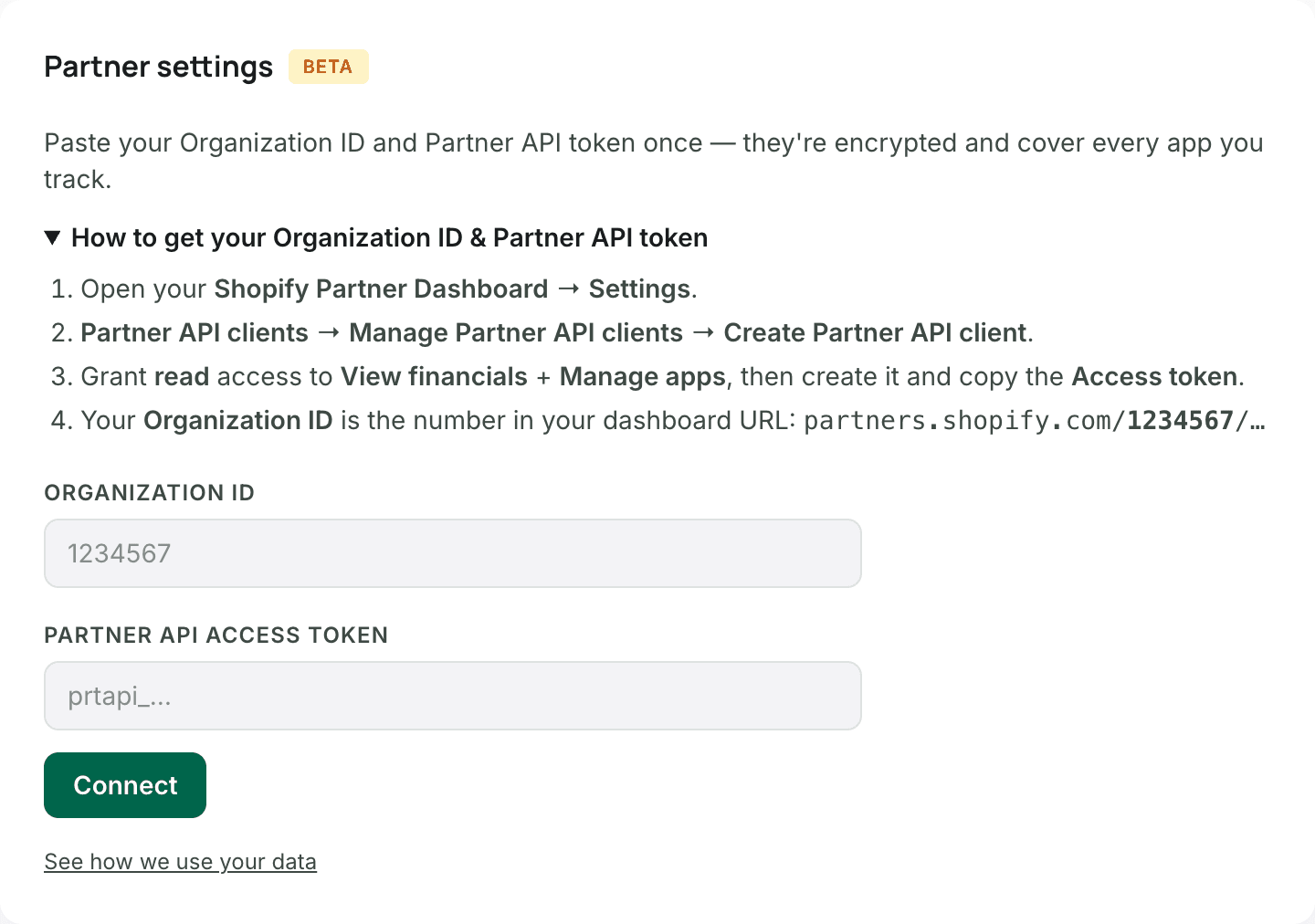
Connect the Shopify Partner API
This is where revenue comes from. AppstorePulse reads each store's charges, plan and uninstall date. Paste your Organization ID and a Partner API token once; they cover every app you track.
- In your Shopify Partner Dashboard, open Settings → Partner API clients → Create Partner API client.
- Give it read access to View financials and Manage apps, create it and copy the access token.
- Your Organization ID is the number in your Partner Dashboard URL.
- In AppstorePulse, open Settings → Partner settings, paste both and click Connect.
Link Google Analytics to BigQuery and give AppstorePulse read access
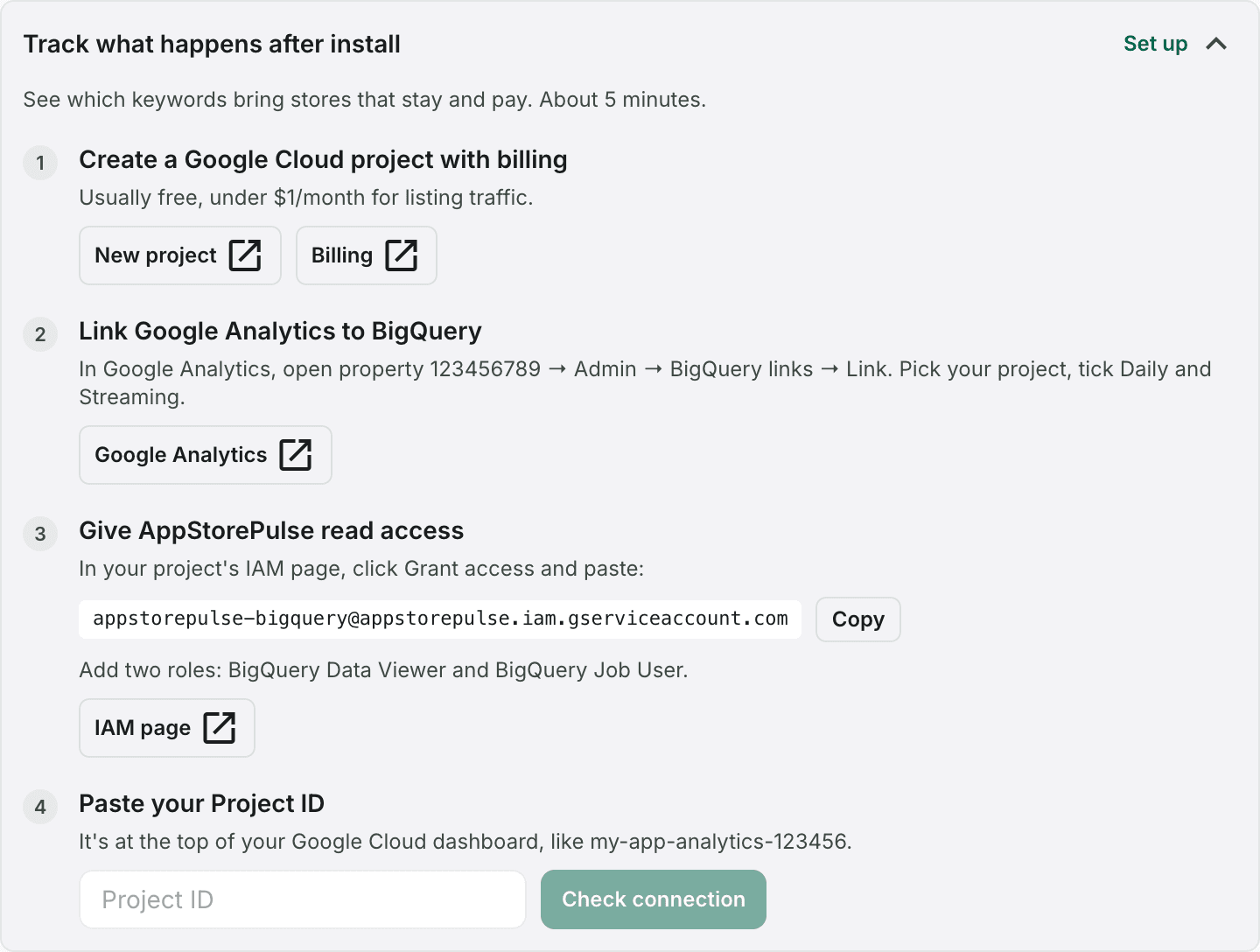
This is what links each install to the search before it. In Settings, open "Track what happens after install" under your app. The checklist takes about 5 minutes.
- Create a Google Cloud project and turn on billing.
- In Google Analytics, open your listing's property → Admin → BigQuery links → Link. Pick your project and tick Daily and Streaming.
- In your project's IAM page, click Grant access, paste the AppstorePulse service account shown in the checklist and add two roles: BigQuery Data Viewer and BigQuery Job User.
- Paste your Project ID and click Check connection. First data shows within 24 hours.
Read revenue per keyword in Listing Analytics
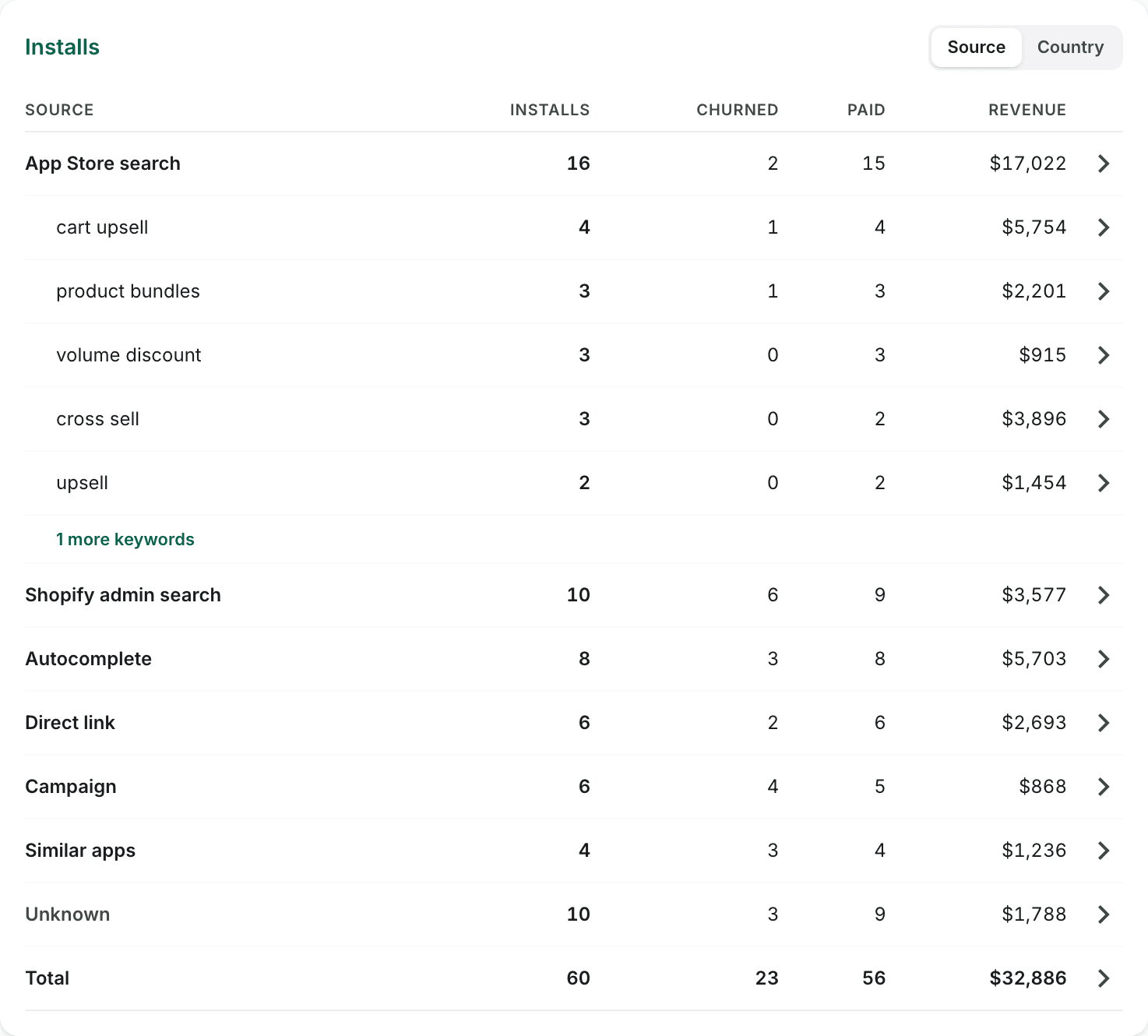
Open Listing Analytics and scroll to Installs. Every install in the date range is grouped by where it came from, and each App Store search row opens into the keywords merchants typed.
- Installs: stores that installed from that source or keyword in the range.
- Churned: how many of them have uninstalled since.
- Paid: how many have paid you something since installing.
- Revenue: net revenue from those stores since they installed.
- Unknown holds installs with no visit to trace, so the rows add up to Shopify's install count. Switch to Country to see the same numbers by country.
Open a keyword to see the stores behind it
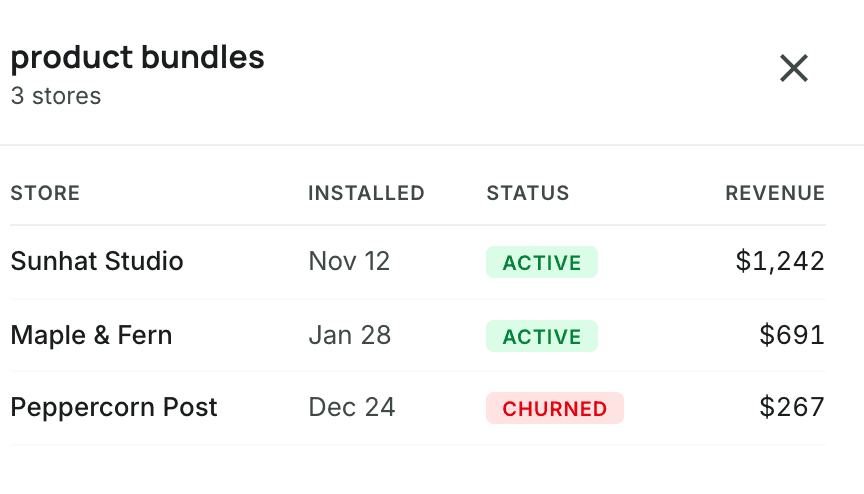
Click any row. A panel lists every store behind that number, with its install date, status (active, trial, free or churned) and revenue. Click a store to open its full history.
Act on it
Now you know which searches pay. Use it where it changes things.
- Put the keywords that bring paying stores in your listing title, subtitle and introduction, and track their rank in Keywords.
- Drop the keywords whose stores churn fast, even if they bring installs.
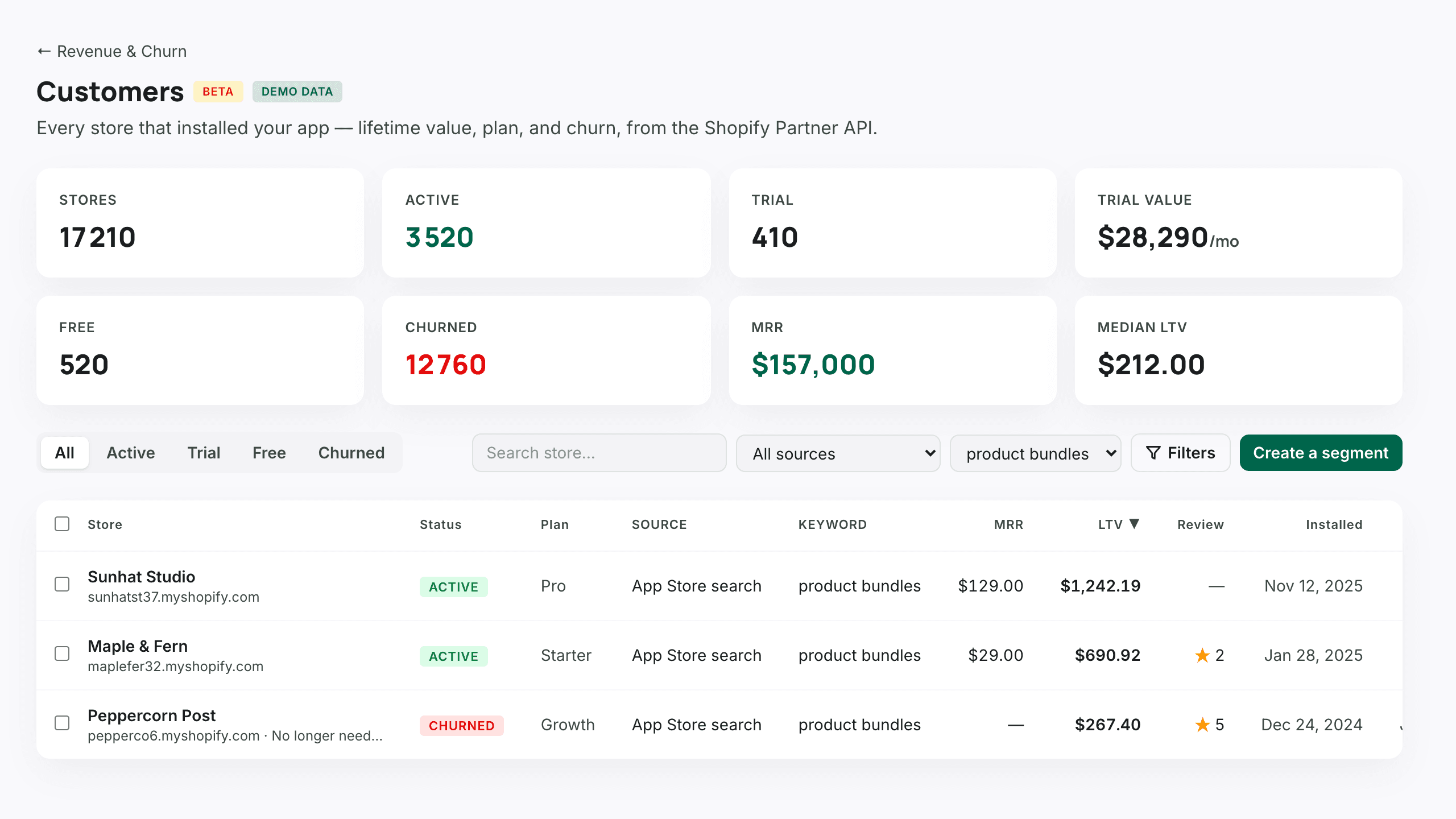
- In Revenue & Churn → Customers, filter by source or keyword, then click Create a segment to email exactly those merchants with Emails & Flows. You can also export the list.
Frequently asked
Can I see revenue per keyword in the Shopify Partner Dashboard?
No. The Partner Dashboard shows installs and earnings, but not the App Store search that brought each store. The search only exists in your listing's Google Analytics, so you have to link the two.
Can Google Analytics do it on its own?
Not fully. GA4 can count listing visits per search query once you register surface_detail as a custom dimension, but Shopify's install event carries no search query, and Google Analytics never sees what a store paid you.
Why are some installs "Unknown"?
Some installs have no listing visit to link to: the merchant used an ad blocker, refused cookies, or installed from a direct link. AppstorePulse keeps them as Unknown instead of guessing, so the totals match Shopify's install count.
Does it work for installs before I set it up?
No. The BigQuery export starts from the day you link it, so visits before that can't be traced. Revenue and churn from the Partner API still cover every store.
What does it cost?
Install sources are included in the Starter and Pro plans. Google bills the BigQuery export to your own Google Cloud project; for listing traffic it is usually under $1 a month.
What access does AppstorePulse get?
Read-only. On BigQuery, the BigQuery Data Viewer and BigQuery Job User roles on your project. On Shopify, a Partner API token with read access to financials and apps, stored encrypted.