Your MRR moves for four reasons: new stores start paying, existing stores upgrade, others downgrade, and some stop paying. An MRR waterfall splits the change into those four steps, so you see what actually happened behind one net number. AppStorePulse builds it from your Shopify Partner data for the last 30 days, and lists the stores behind every step.
Before you start
- Any AppStorePulse plan for the waterfall totals. Starter or Pro to open each step and see its stores, and for the Over time charts.
- Your Shopify Partner account connected in Settings. Our tutorial How to calculate MRR and churn for your Shopify app covers it.
Why the net change hides the story
A month where MRR grew by $500 can mean $600 of new stores and almost no churn. It can also mean $4,000 of new stores and $3,500 lost to cancellations. The first is a healthy app. The second has a leak that new installs are hiding.
Each step points to a different fix. Low new MRR is a listing and acquisition problem. High churn is a product or onboarding problem. Contraction means stores find a cheaper plan good enough. Expansion shows which upgrades work.
Doing it by hand
Take two lists of paying stores with each store's monthly plan value: one from 30 days ago, one from today. Then put every store in one bucket. Paying today but not before: new. Paying before but not today: churn. Paying more today: expansion. Paying less: contraction. Add up each bucket.
The sums must equal today's MRR minus the MRR of 30 days ago. If they don't, a store is in the wrong bucket. The hard part is the old list: the Partner Dashboard keeps an event history, not a daily copy of who paid what, so you rebuild it by replaying charges, cancellations and plan changes store by store.
The full walkthrough
Open Revenue & Churn
With your Partner account connected, open Revenue & Churn. The MRR movement card sits right under the Right now numbers.
Read the MRR movement
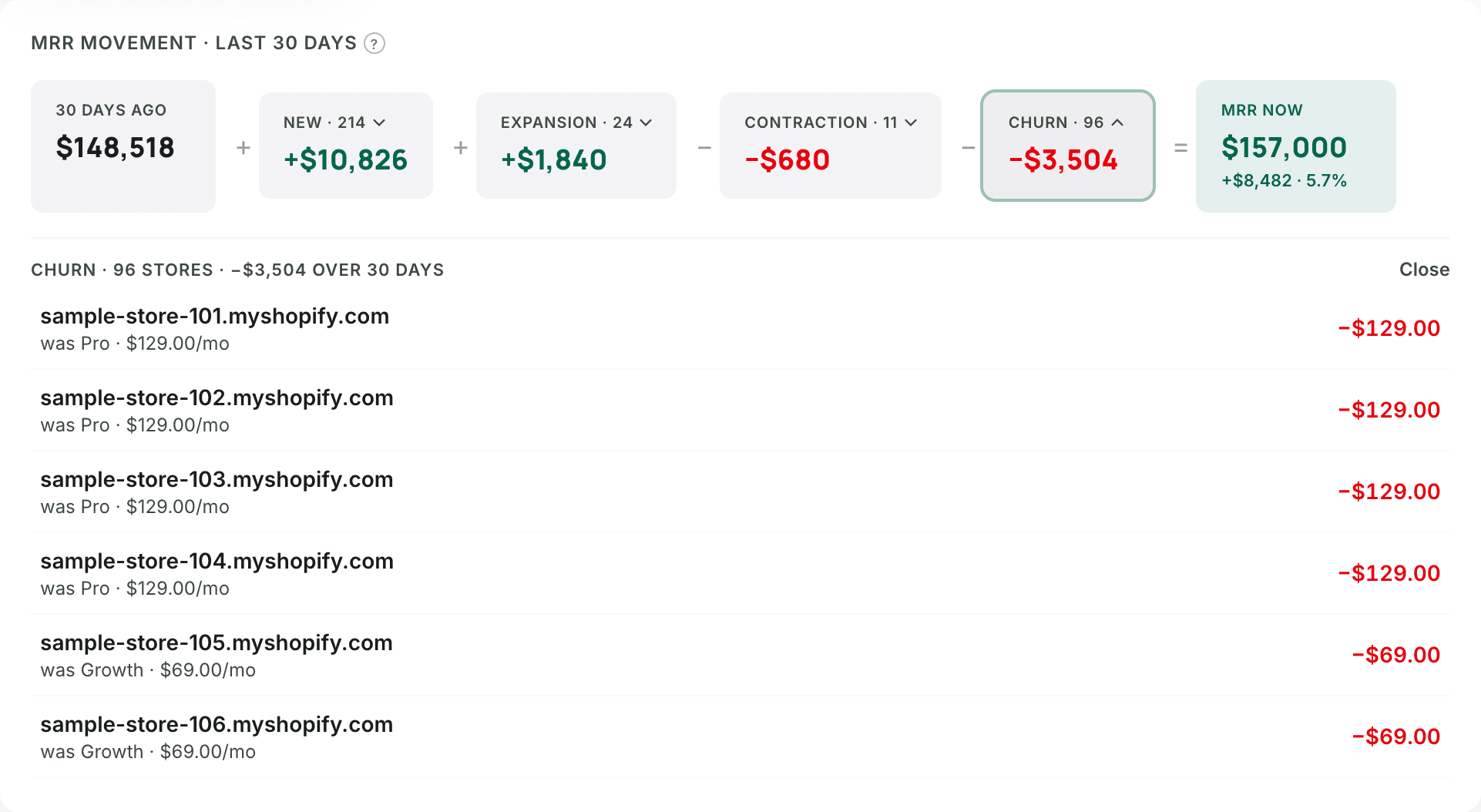
The card reads from left to right: your MRR 30 days ago, plus New, plus Expansion, minus Contraction, minus Churn, equals MRR now, with the change in dollars and percent.
- New: stores that started paying in the last 30 days, and how many.
- Expansion: extra MRR from stores that moved to a higher plan.
- Contraction: MRR lost to stores that moved to a lower plan.
- Churn: MRR lost to stores that stopped paying, and how many.

Click a step to see its stores
Click any step to list the stores behind it, biggest change first. Each row shows the store, its plan and price, and how much it added or removed. The rows add up to the step total.
- Churn rows show the plan the store was on. Expansion and contraction rows show the old plan and the new one.
- With one app selected, click a store to open its page: lifetime value, revenue by month and every install, charge and uninstall.
See the trend over months
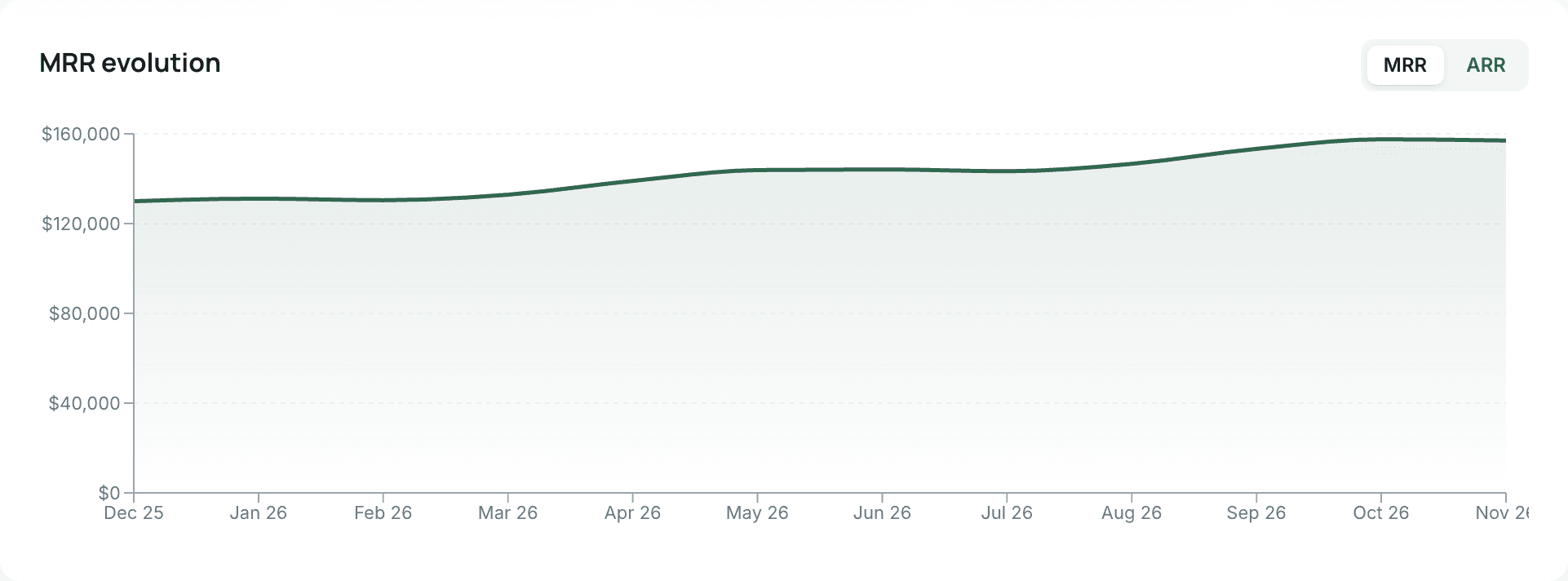
One month can be noise. In Over time, the MRR evolution chart shows MRR for up to 2 years. Switch it to ARR if you prefer. Below it, Active subscribers and New vs. churned subscribers show whether growth comes from more new stores or fewer cancellations.
Find out why stores left
When churn is the big step, scroll to Why merchants uninstall. It groups the reasons merchants gave in Shopify's uninstall survey, with the MRR each reason cost you. Click a reason to see the stores and any note they left.
Frequently asked
What is an MRR waterfall?
A chart that starts from your MRR at the beginning of a period and adds or removes each source of change: new, expansion, contraction and churn. It ends at your MRR today.
What is the difference between churn and contraction?
Churn is a store that stopped paying. Contraction is a store that still pays, but less, because it moved to a cheaper plan.
Does a store that reinstalls count as new?
The waterfall compares who was paying 30 days ago with who pays today. A store that was not paying 30 days ago and pays now counts as new, even if it had your app before.
Can I see the waterfall for one app when I have several?
Yes. Pick the apps in the app picker at the top. One app gives that app's waterfall, several give a combined one.
Which plans include it?
Every plan sees the waterfall totals. Starter and Pro can open each step to see the stores behind it, and get the Over time charts.