Most Shopify apps that fail were built in the wrong place: a category where three apps hold most of the reviews, or one where merchants stopped installing. The Shopify App Store shows you each category's apps, but not whether it is growing, who is gaining, or how locked up it is. To judge a niche you need the same few numbers for every category, compared side by side. AppStorePulse Niche Explorer scores every Shopify App Store category from our daily App Store data, then breaks each one down into its leaders, pricing, recent launches and gaps.
Before you start
- An AppStorePulse account. The free plan shows each category's health score and label, with names and numbers locked. Starter and Pro show everything.
- No app needed. You can use Niche Explorer before you write a line of code.
What makes a niche worth building in
Three things decide whether a new app can win a category. Demand: are merchants installing and reviewing apps there right now, and is that going up or down? Concentration: do the top few apps hold almost all the reviews, or is the pie shared? Entry: how many new apps launched recently, and are they getting traction?
Reviews are the best public signal for all three. As I teach in my course, the number of reviews on the top apps tells you how much traffic a market gets: more reviews means more merchants. And reviews added recently tell you whether that market is alive today, not five years ago.
A good niche has growing review activity, leaders that don't own everything, and room on price or features that the top apps leave open.
Doing it by hand
Open a category on the Shopify App Store and write down the top apps with their rating, review count, pricing plans and launch date (each listing shows when the app launched). Add up the reviews of the top 3 and compare it with the category total to see how concentrated it is.
To see demand, you need the same review counts again two weeks later: the difference is how many reviews the category gained. Do it for every category you're considering, then compare.
It works for two or three categories. It gets slow past that, and a single snapshot can't tell you if a category is speeding up or slowing down. You need at least two counts, weeks apart, before the numbers mean anything.
The full walkthrough
Open Niche Explorer and sort the categories
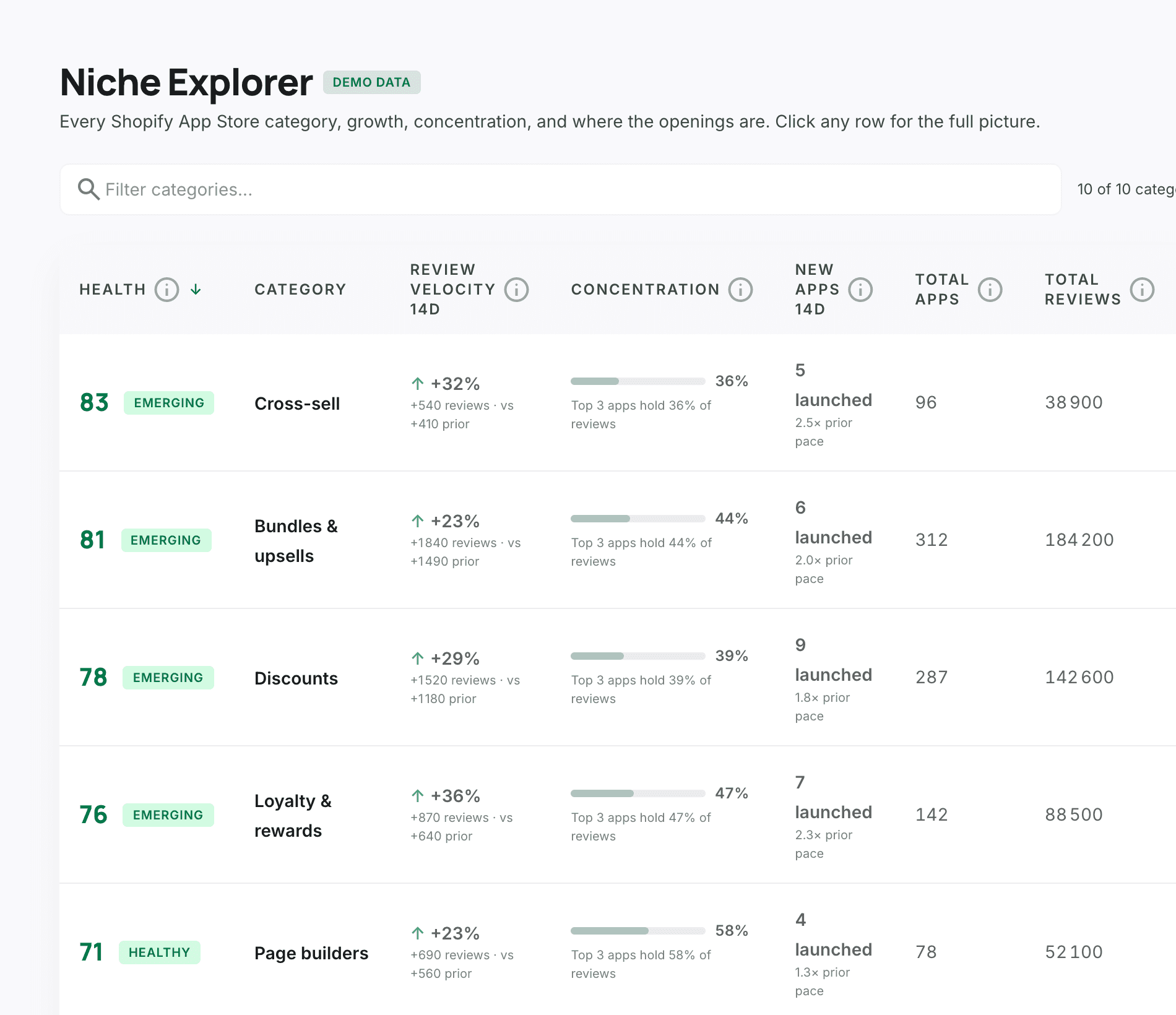
In AppStorePulse, open Market research → Niche Explorer. Every Shopify App Store category is one row, sorted by health score. Click a number column to sort by it, or type in the filter box to find a category.
- Health: a score from 0 to 100 to rank categories at a glance, with a label for what kind of health it is.
- Review velocity 14d: reviews added in the last 14 days against the 14 days before.
- Concentration: the share of all reviews held by the 3 biggest apps. Lower means more room for a new app.
- New apps 14d: apps launched in the last 14 days, and the pace against the 14 days before.
- Total apps and total reviews: the size of the category.
Read the labels
Each category gets a label from its demand, entry pace and concentration. Hover a label in the app for its meaning.
- Emerging: strong growth and new entrants, and still open. The best window to enter.
- Hot but locked: hot demand, but the top apps already dominate. You need a strong angle to break in.
- Healthy: steady growth at a normal pace.
- Crowded: many new apps but flat demand.
- Mature: stable demand with established leaders. Look for a sub-niche.
- Declining: activity is shrinking. Think twice before investing.
- Nascent: not enough review activity yet to judge. Stable: mixed signals.
Open a category for the verdict
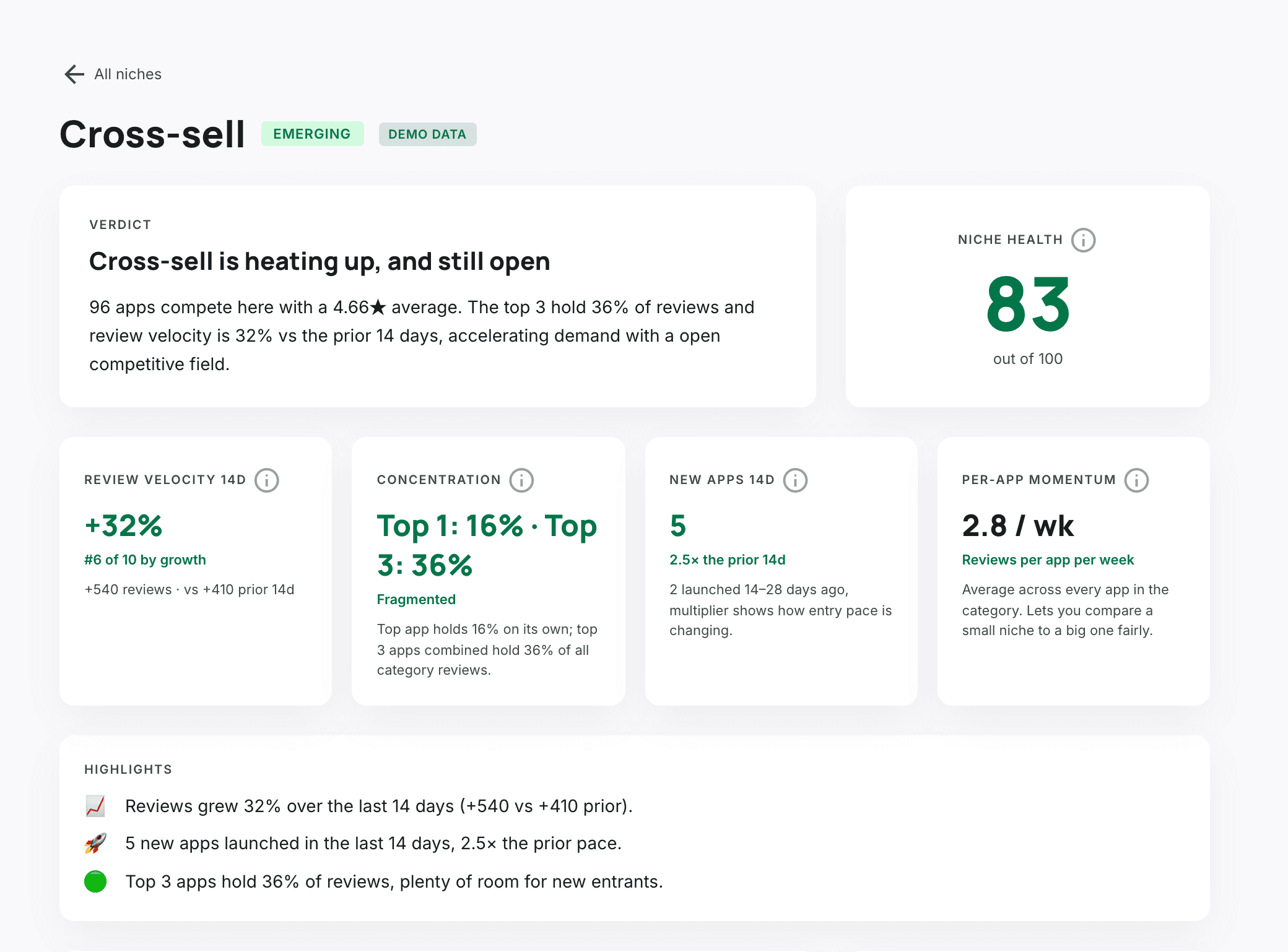
Click a category. The top of the page sums it up in one sentence, then shows the health score and four numbers, each compared with something: review velocity with its rank among all categories, concentration of the top app and the top 3, new apps against the prior 14 days, and reviews per app per week, so a small niche and a big one compare fairly. Highlights list what stands out.
Check pricing, age, momentum and the leaders
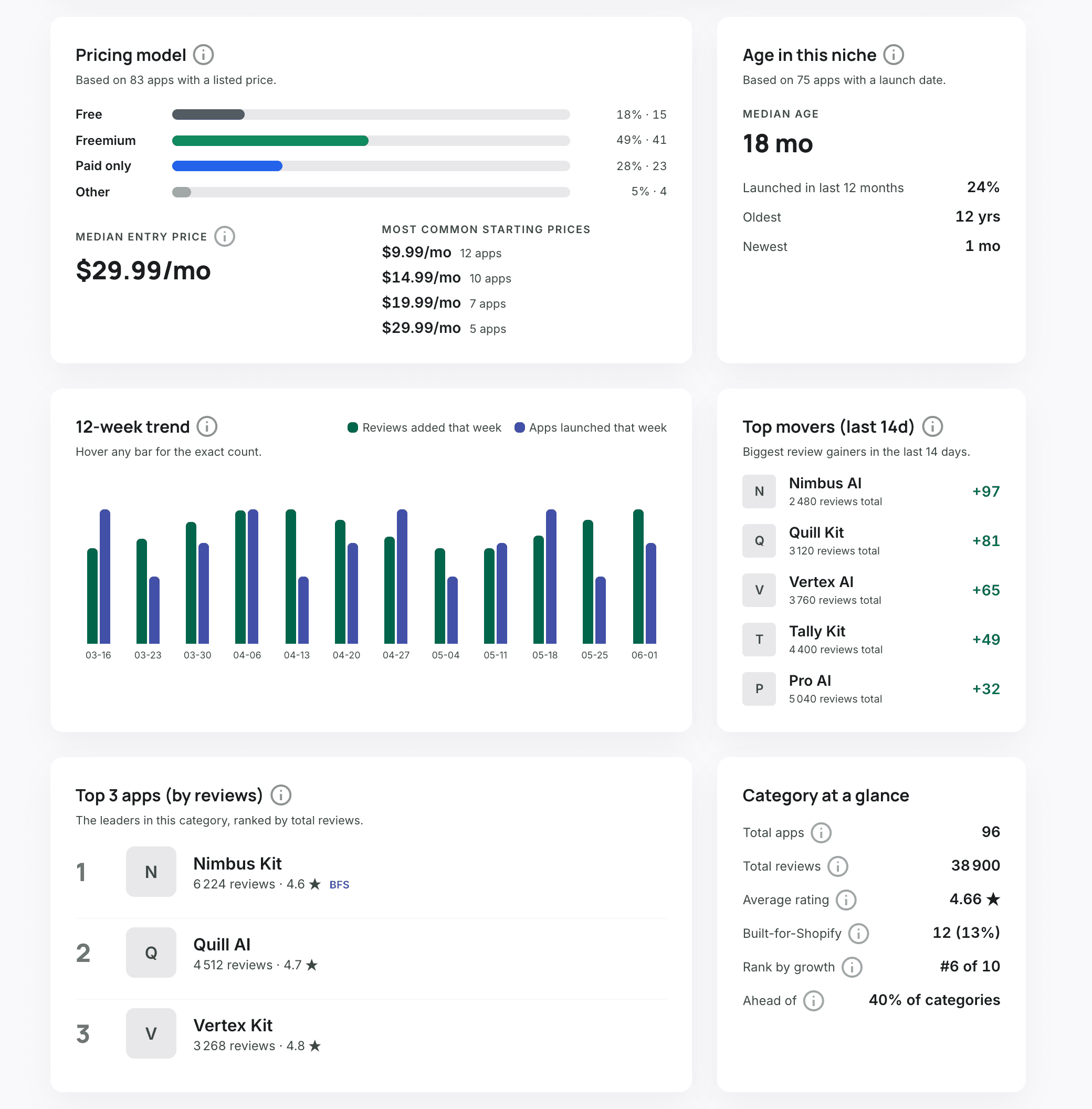
Further down, everything you'd collect by hand, already counted.
- Pricing model: how many apps are free, freemium or paid only, the median entry price and the most common starting prices.
- Age in this niche: the median age of apps, and how many launched in the last 12 months. Many recent launches mean merchants still try new apps here.
- 12-week trend: reviews added and apps launched each week.
- Top movers: the five apps that gained the most reviews in the last 14 days. These are the apps winning right now, often not the oldest ones.
- Top 3 apps by reviews: the leaders you'd compete against, with rating and Built for Shopify badge.
Find your angle in Opportunities
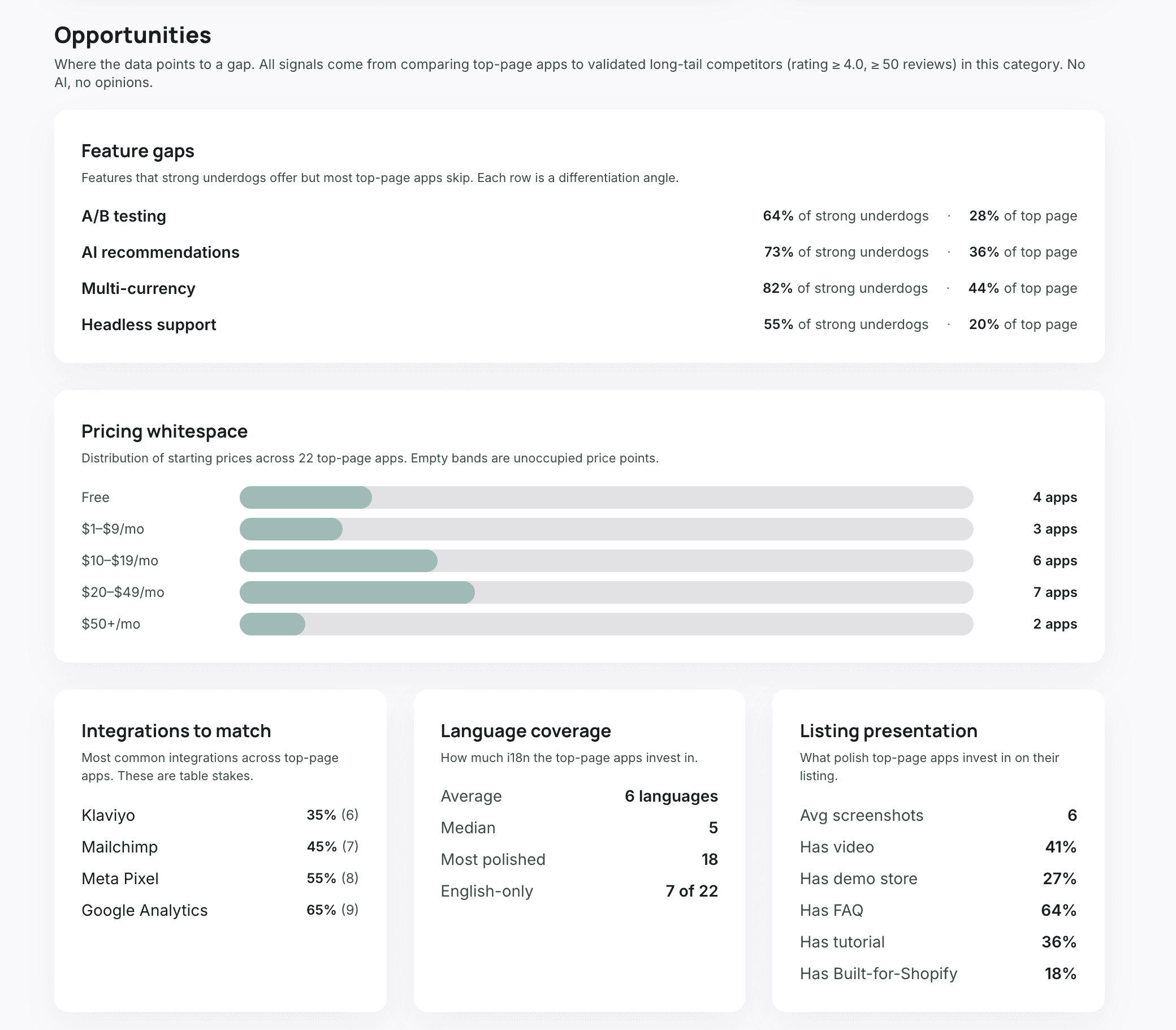
The last section compares the apps on the first page with strong smaller apps in the same category, and shows where the gaps are.
- Feature gaps: features that strong smaller apps offer but most top apps skip. Each one is a way to stand out.
- Pricing whitespace: how the top apps' starting prices spread across price bands. An empty band is a price point nobody holds.
- Integrations to match: the integrations most top apps have. Plan to have them too.
- Language coverage: how many languages the top apps support, and how many are English only.
- Listing presentation: screenshots, video, demo store, FAQ, tutorial and Built for Shopify among the top apps. This is the bar your listing has to clear.
Shortlist and compare
Open your three or four best candidates side by side and pick on evidence.
- Prefer growing review velocity over a big total: a small category that is speeding up beats a big one that is slowing down.
- Check concentration twice: a top 3 holding most reviews means you'll fight for scraps unless you have a clear angle.
- Write down the gap you will fill: a missing feature, an empty price band, a language nobody supports. If you can't name one, keep looking.
Frequently asked
Does Shopify show how competitive an App Store category is?
No. Each category page lists its apps with ratings and review counts, but Shopify gives no growth, concentration or launch numbers per category. You have to count them yourself or use a tool.
Why use reviews to measure demand?
Installs and revenue of other apps are private. Reviews are public on every listing, and the number of reviews on the top apps tells you how much traffic a market gets. Reviews added recently show whether that demand is growing.
How often is Niche Explorer updated?
Daily, from our daily App Store data.
What does the free plan show?
Every category's health score and label, so you can see the shape of the market. Category names, numbers and the category pages need Starter ($49/month) or Pro ($99/month).
Is a high health score enough to pick a niche?
No. Use it to rank categories, then open the category: the label, the leaders, pricing and the gaps tell you whether you can actually win there.