Keyword research for a Shopify app means finding the searches merchants type in the App Store, then picking the ones you can win. A good keyword describes what your app does, has enough demand to matter, and isn't owned by apps with thousands of reviews. AppstorePulse gives you the list from your listing and your competitors, with difficulty and volume for each search, so you choose with numbers instead of guesses.
Before you start
- An AppstorePulse account. The free plan tracks 3 keywords, Starter 20 per app, Pro 100 per app.
- Your app added in AppstorePulse, so suggestions come from your own listing.
- A Starter or Pro plan and at least one tracked competitor for Keyword Opportunities.
Why keyword research matters on the App Store
Most merchants find apps by searching the App Store. The searches you appear for decide who sees your listing, so the words in your listing decide who installs.
Shopify gives you a few clues. Your listing's Google Analytics shows the searches that sent visits. Shopify's own docs say positive reviews help apps appear higher in search results. But Shopify publishes no search volumes and no list of the searches merchants use, so you can't see the demand behind a keyword or how hard it is to reach page one.
Doing it by hand
Write down how a merchant would describe the problem your app solves. Search each phrase on the App Store and open the top apps: their names and intros show the words that work. To judge demand, look at the reviews on the top 5 apps for a search. More reviews usually means more merchants search for it, and a harder fight to get in.
It works for ten phrases. It stops working when you want to compare fifty, because you have no volume and no difficulty to rank them by. And you can't tell which searches your competitors rank for that you never thought of.
The full walkthrough
Start with the suggestions
Open Keywords. Under Track a keyword, AppstorePulse suggests searches from your own listing, your category and your competitors, plus searches you already show up for. Click a suggestion to track it, or type your own phrases. You can paste a whole list at once.
- Start with 3 to 5 searches that describe what your app does in a merchant's words.
- Tracked keywords drop out of the suggestions, so new ideas come up as you add them.

Compare difficulty and volume
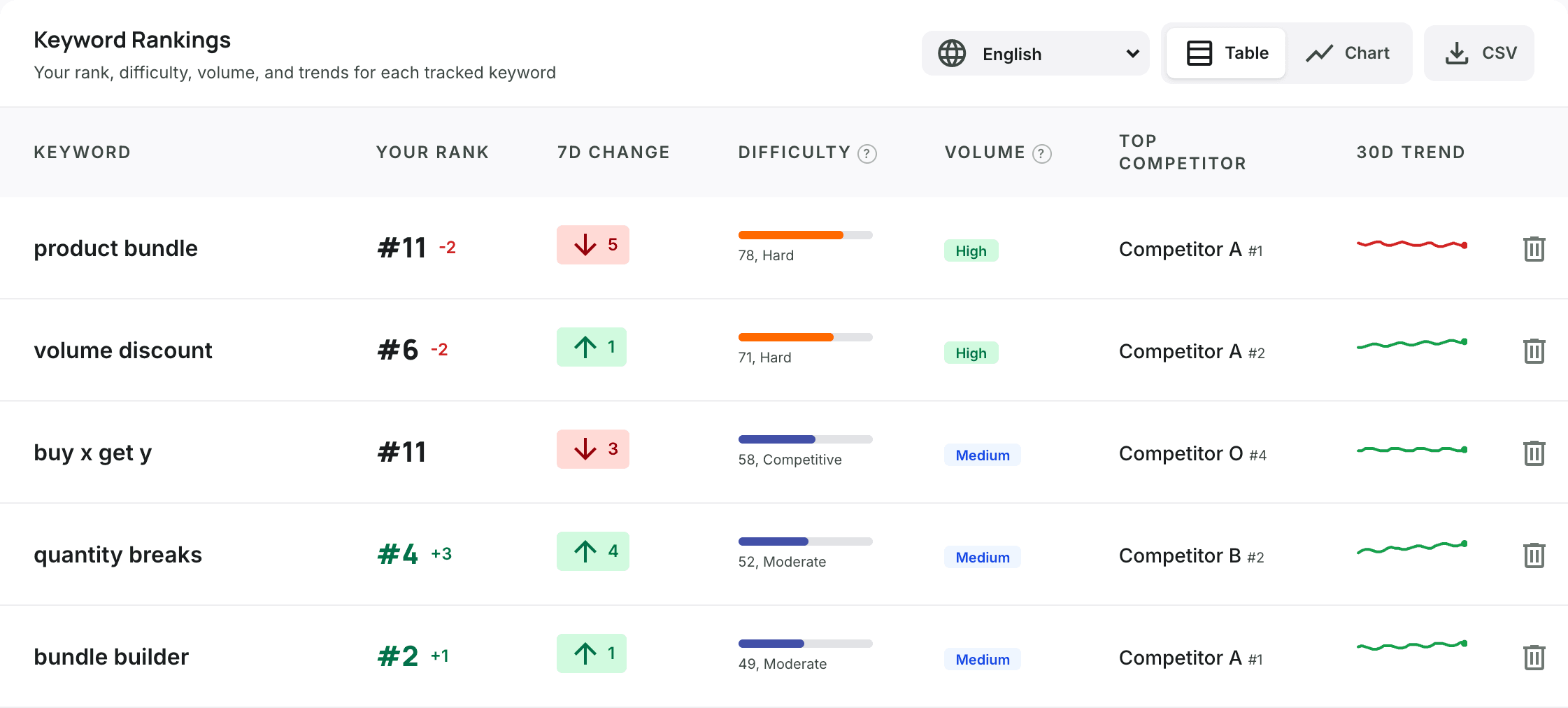
Each tracked keyword gets a row in Keyword Rankings with your rank, a difficulty score and a volume tier. Use the two together to choose where to spend your listing words.
- Difficulty goes from 1 to 100 with a label from Very Easy to Extremely Hard: how established the apps in the top results are.
- Volume shows a tier from Very Low to High: estimated search demand. Shopify doesn't publish search volumes, so treat it as a direction, not a count.
- The best targets are Medium or High volume with a difficulty you can reach. Click a column header to sort.
Find the keywords your competitors rank for
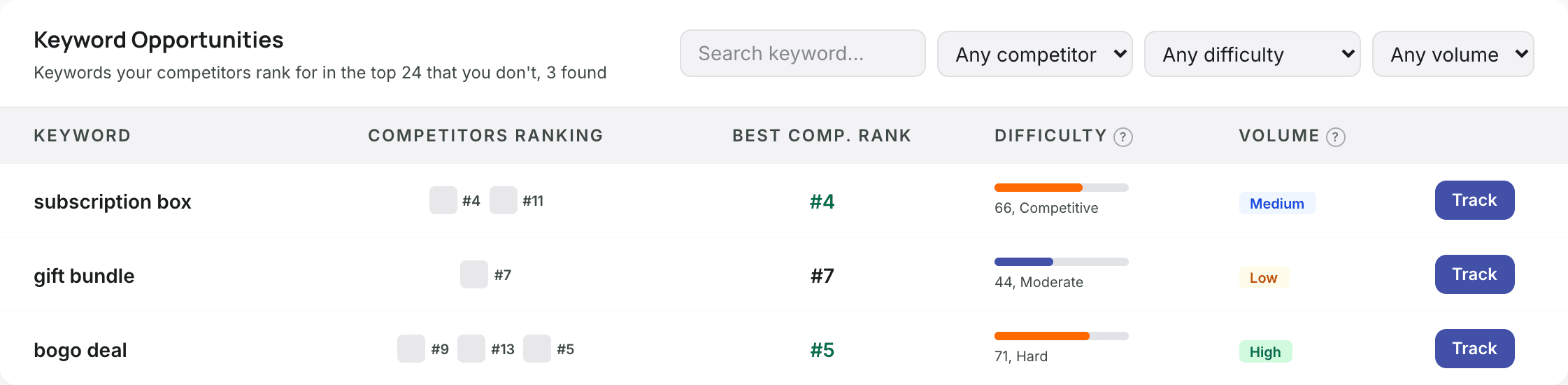
On Starter and Pro, Keyword Opportunities lists the searches where your tracked competitors rank in the top 24 and you don't. Each row shows which competitors rank, their best position, difficulty and volume. Click Track to add one.
- Filter by competitor to see one rival's keywords.
- Set difficulty to Easy or Up to moderate, and volume to Medium + to find the quick wins.
Open a keyword to find related searches
Click any tracked keyword. At the bottom of its page, Related Keywords lists the other searches the top-ranked apps for that keyword also rank for. These are often the variations merchants use for the same need.

Put the keywords in your listing
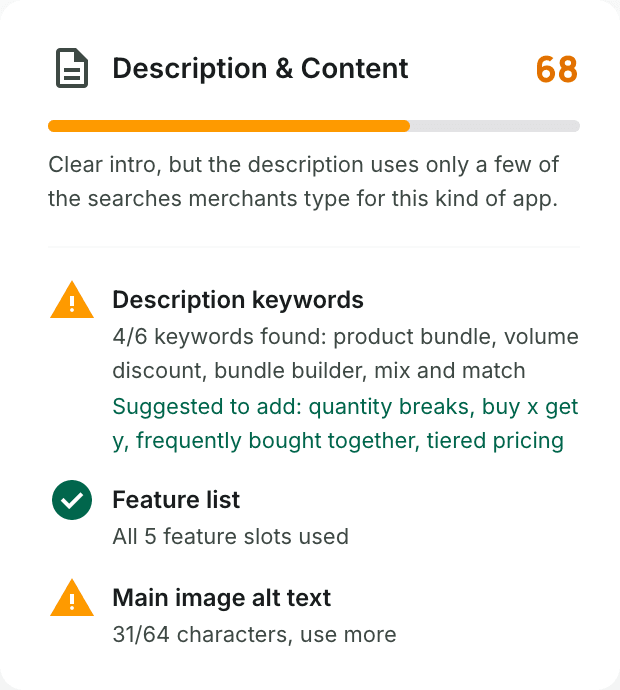
Open Listing Optimizer and click Description & Content. The Description keywords check counts the merchant searches your description covers. When it finds fewer than 6, it lists the keywords to add.
- Use your main keyword in your app name and intro, where merchants read first, and the rest in your description and features.
- Come back to Keywords a few days after you publish to see where you moved.
Frequently asked
Does Shopify show search volume for App Store keywords?
No. Shopify doesn't publish search volumes for the App Store. Your listing's Google Analytics shows the searches that sent you visits, but nothing for searches where you rank too low to be clicked.
How do I know if a keyword is too hard?
Look at difficulty. It tells you how established the apps in the top results are, from 1 to 100. A new app does better on Easy and Moderate keywords first, then moves up as reviews come in.
Can I see the keywords my competitors rank for?
Yes, on Starter and Pro. Keyword Opportunities lists the searches where your tracked competitors rank in the top 24 and you don't, with difficulty and volume.
How many keywords should I track?
Start with the 5 to 10 that describe your app best, then add the opportunities you want to win. The free plan tracks 3, Starter 20 per app and Pro 100 per app.
Where should keywords go in my listing?
Use your main keyword in your app name and intro, where merchants read first, and the others in your description and features. Listing Optimizer checks how many merchant searches your description covers and suggests what to add.