Shopify doesn't hand app developers a list of merchant emails. Your app can read each store owner's email when it installs, and that is where your list starts. AppstorePulse takes those contacts from your app, adds each store's billing data from your Shopify Partner account, and lets you send campaigns from your own domain to all your merchants or only the ones on a trial, a plan or a price.
Before you start
- A Starter or Pro plan. Starter covers up to 1,000 contacts and 10,000 emails a month, Pro up to 5,000 contacts and 50,000 emails a month.
- A few lines of code in your app to send us each store's email, or a CSV of the merchants you already have.
- A domain you control, to send from (for example mail.yourapp.com).
- Optional but worth it: your Shopify Partner account connected, so you can target stores by plan, trial and spend.
What Shopify gives you
The Partner Dashboard and the Partner API show which stores installed your app and what they pay, by store domain only. They don't include the merchant's email.
Your app is the one that can get it. When a store installs, the Shopify Admin API gives your app the shop owner's email address, the one Shopify itself uses to reach the merchant. Save it with the store's .myshopify.com domain and you have a contact you can tie back to its billing.
Doing it by hand
Store each owner email in your database, export it to a newsletter tool, and send. To target trial stores or one plan, export your Partner data too and match the two files on the store domain before every send.
It works for one announcement to everyone. It stops working when you want the right stores only: by the time you export and match, stores have upgraded, cancelled or left, and a generic tool can't tell which email brought a subscriber.
The full walkthrough
Send us your merchants
In Emails & Flows, open Settings, create an API key and follow the integration guide. Call identify with the merchant's email and the store's .myshopify.com domain. The domain is what links each contact to its billing data.
- Best place: your install callback, server-side with your secret key. New installs then arrive within a minute.
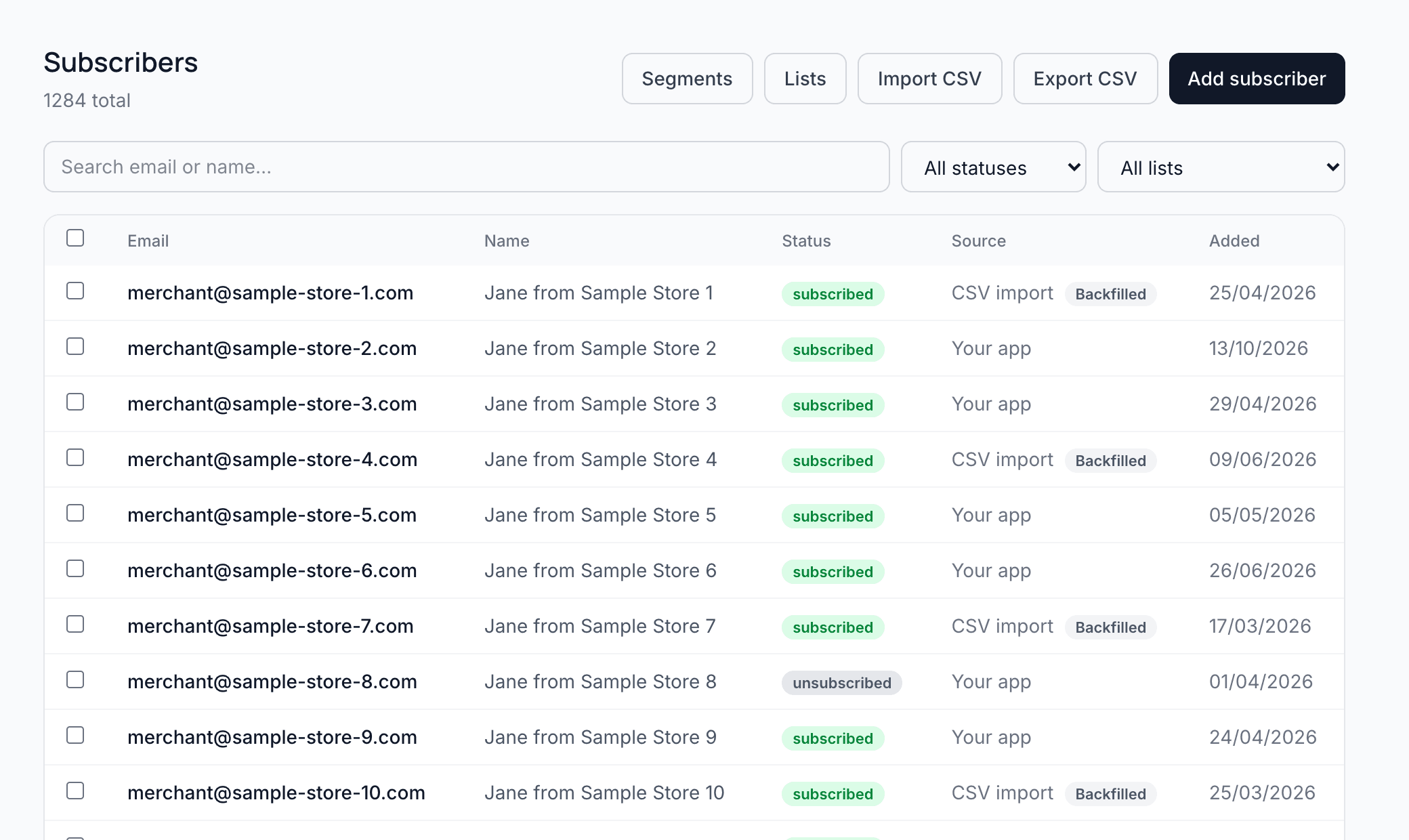
- Already have merchants? Import a CSV from Subscribers, or loop your shops through identify once. Mark them as backfilled so they don't get your new-install welcome email.
- Unsubscribes, bounces and complaints are tracked for you. An address that unsubscribed is never re-subscribed by a later call.
Connect your Shopify Partner account
Connect your Partner account once, from Settings. Each contact is then matched to its store and gets its billing data: paying or not, on trial and when the trial ends, plan, monthly spend, lifetime value, install and uninstall dates. That is what lets you email the right stores, not everyone.
Set up your sending domain
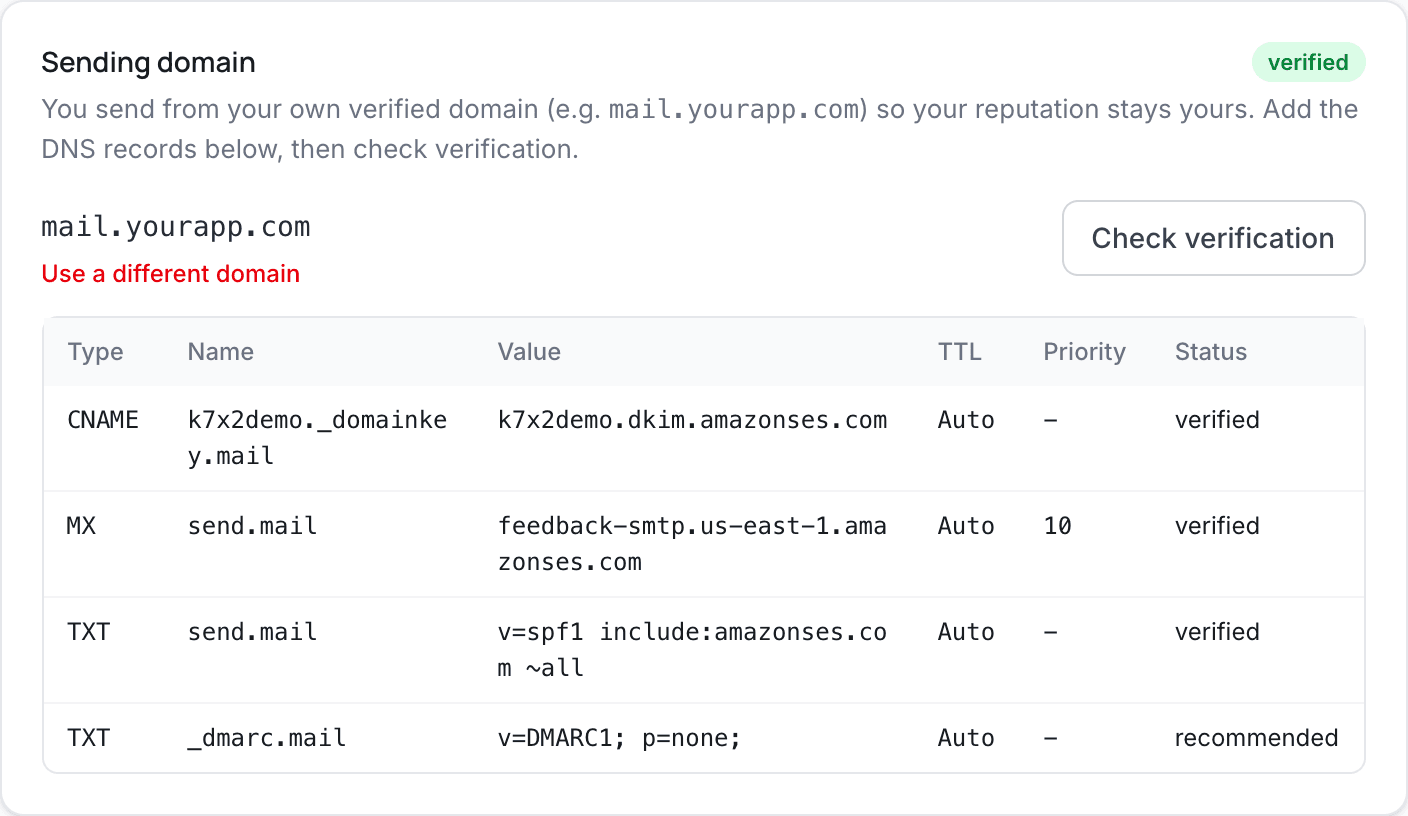
In Emails & Flows Settings, add the domain you want to send from and copy the DNS records into your domain provider. Click Check verification. Merchants see your name and your domain, not ours.
- Use a subdomain such as mail.yourapp.com, so your main domain's email is untouched.
- Each app starts at 200 emails a day. The limit grows as you send, to protect your sender reputation while you ramp up.
Write and send a campaign
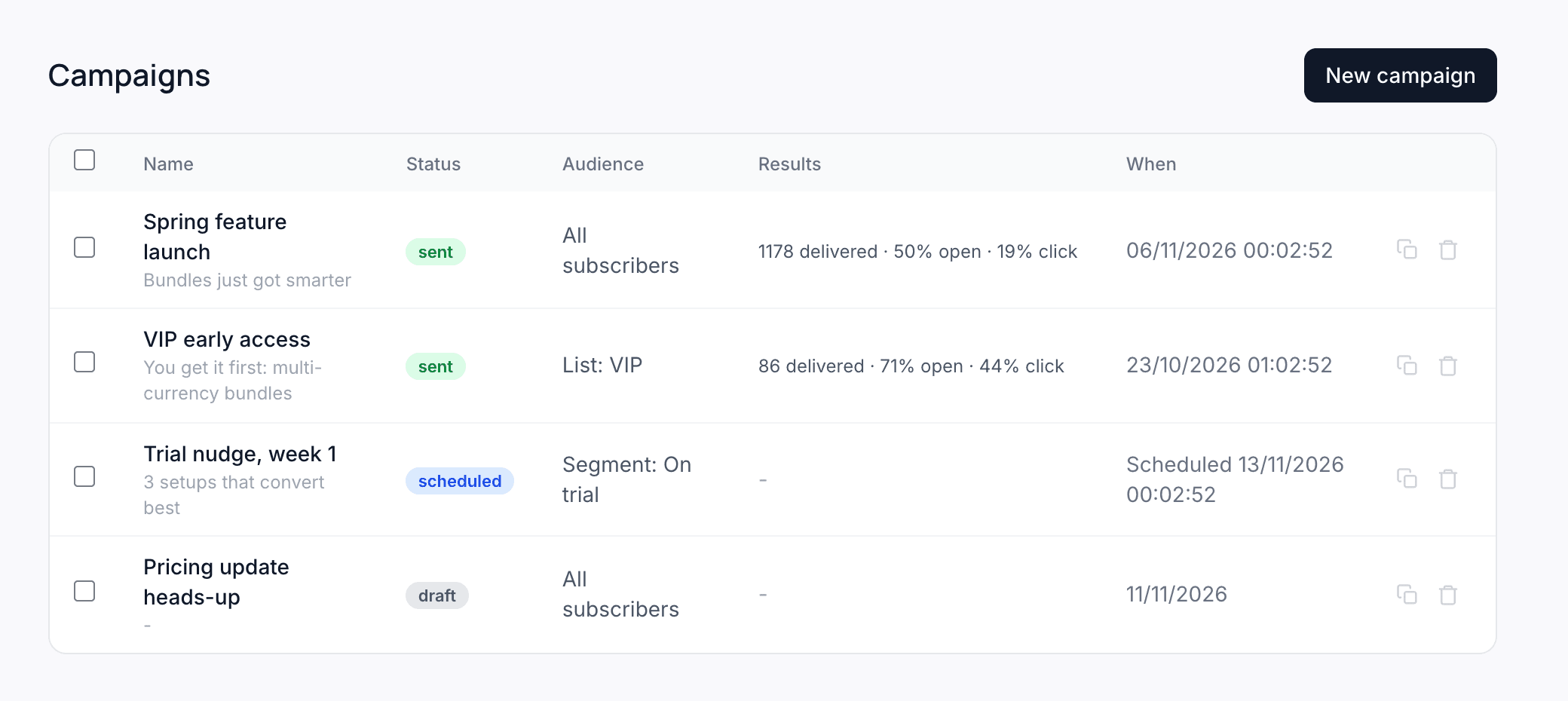
Open Campaigns and click New campaign. Pick the audience, write the email, check it and send it now or schedule it.
- Audience: All subscribers, a list, or a segment such as On trial or Paying. You see how many stores it reaches before you send.
- Personalize with the merchant's name or store, with a fallback when a value is missing.
- Send a test to yourself first. Then Send now, or Schedule with a date and time zone.
Read the results
The Campaigns list shows each campaign's audience and results: delivered, opens and clicks. Open one for bounces, complaints, and the stores that subscribed, upgraded or came back within 30 days of clicking, with the monthly revenue they're worth.
Frequently asked
Does Shopify give app developers merchant emails?
Not through the Partner Dashboard or the Partner API, which identify stores by domain. Your app can read the shop owner's email from the Shopify Admin API once the store installs it.
Can I import the merchants I already have?
Yes. Import a CSV from Subscribers with each email and store domain, or send them through the API once. Mark them as backfilled so they skip your new-install welcome flow.
Do emails come from AppstorePulse?
No. You verify your own sending domain, and merchants see your name and address.
Can I email only the stores on a trial or on one plan?
Yes, once your Partner account is connected. Pick a segment as the campaign audience: on trial, paying, a plan name, monthly spend, install date and more.
How much does it cost?
Emails & Flows is included in Starter ($49/month, up to 1,000 contacts and 10,000 emails a month) and Pro ($99/month, up to 5,000 contacts and 50,000 emails a month). Pro can go up to 50,000 contacts at $30 a month per extra 5,000. Stores that unsubscribed don't count.
What happens if I reach my limit?
We never charge you more on our own. You get a warning at 80% and at 100%, and new campaigns wait until you raise your limit or remove contacts.