Your listing is the page that turns a search into an install. Shopify publishes guidelines for every field of it, from the app name to the screenshots, but nothing grades your listing against them or against the apps ranked above you. An audit does both. AppStorePulse's Listing Optimizer scores your listing out of 100 across six areas, compares it with the top 10 apps in your category, and turns every gap into a to-do list ranked by impact.
Before you start
- An AppStorePulse account with your app added. The full audit is included on every plan, including Free.
- No account yet? The free audit at appstorepulse.com/audit scores any app without signing up. A free account shows the checks and recommendations behind the score.
What Shopify asks of your listing
Shopify's App Store best practices set the limits. The app name is 30 characters at most and should lead with your brand, not a generic word or the name of a platform you integrate with. The app introduction has 100 characters and the app details 500. Each feature is up to 80 characters.
For visuals, Shopify asks for 3 to 6 desktop screenshots at 1600 by 900 pixels, at least one showing your app's interface, with alt text and no pricing, reviews or outcome guarantees in them. It recommends a short promotional video of 2 to 3 minutes. Across the listing, avoid keyword stuffing, unsupported claims and incomplete sentences.
Doing it by hand
Open your listing next to Shopify's best practices and check each field: name length and wording, introduction, details, features, screenshots, video, categories, languages, and whether you link a privacy policy, a demo store, an FAQ and documentation.
Then open the top 10 apps in your category and note the same things for each: how many screenshots, languages, features and integrations they have, whether they have a video or the Built for Shopify badge, and how long their description is. Average it and compare with yours. It takes an afternoon, and you redo it every time you or they change something.
The full walkthrough
Run the audit
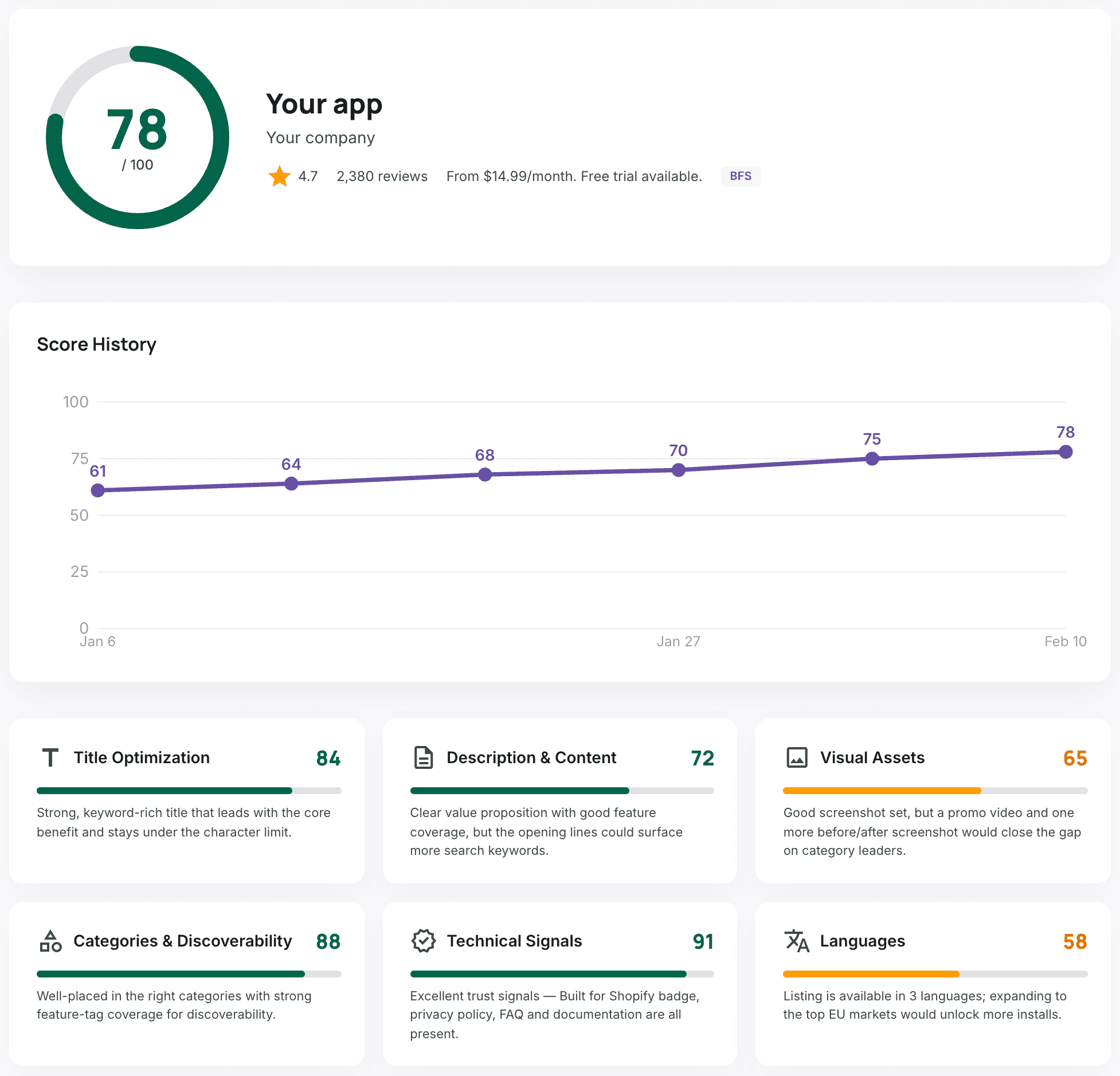
Open Listing Optimizer and click Re-run Audit. You get an overall score out of 100 and a score for each of six areas.
- Title Optimization, and Description & Content.
- Visual Assets: screenshots, video and lead image.
- Categories & Discoverability, Technical Signals and Languages.
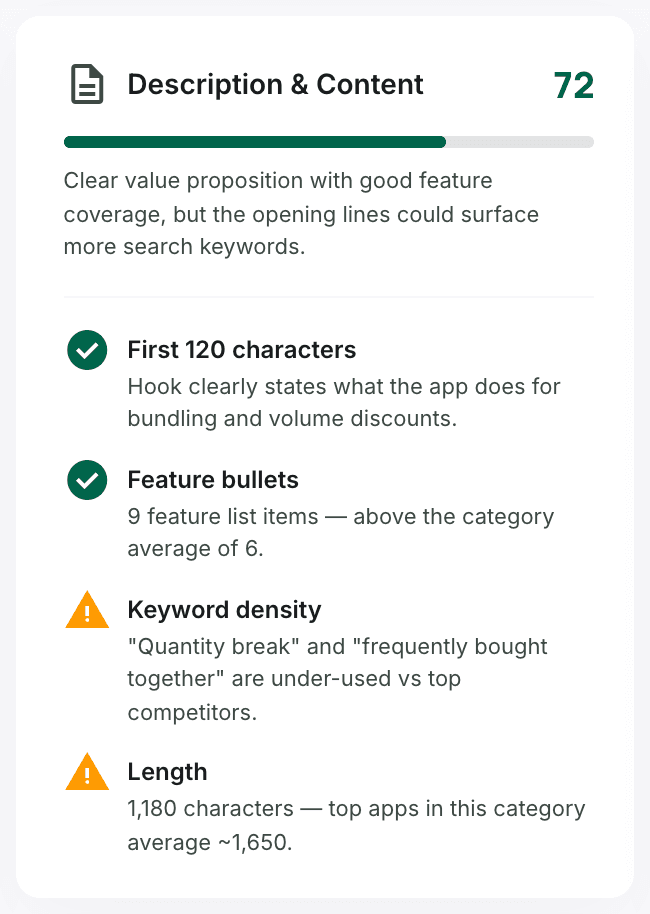
Open an area to see every check
Click an area. Each check is marked pass, warning or fail, with a plain sentence on what was found: the title length, the keywords in your description, how many screenshots have captions, whether you link a demo store.
- Areas scoring under 50 get a red edge. Start there.
- When your description is short on keywords, the description check suggests keywords to add.
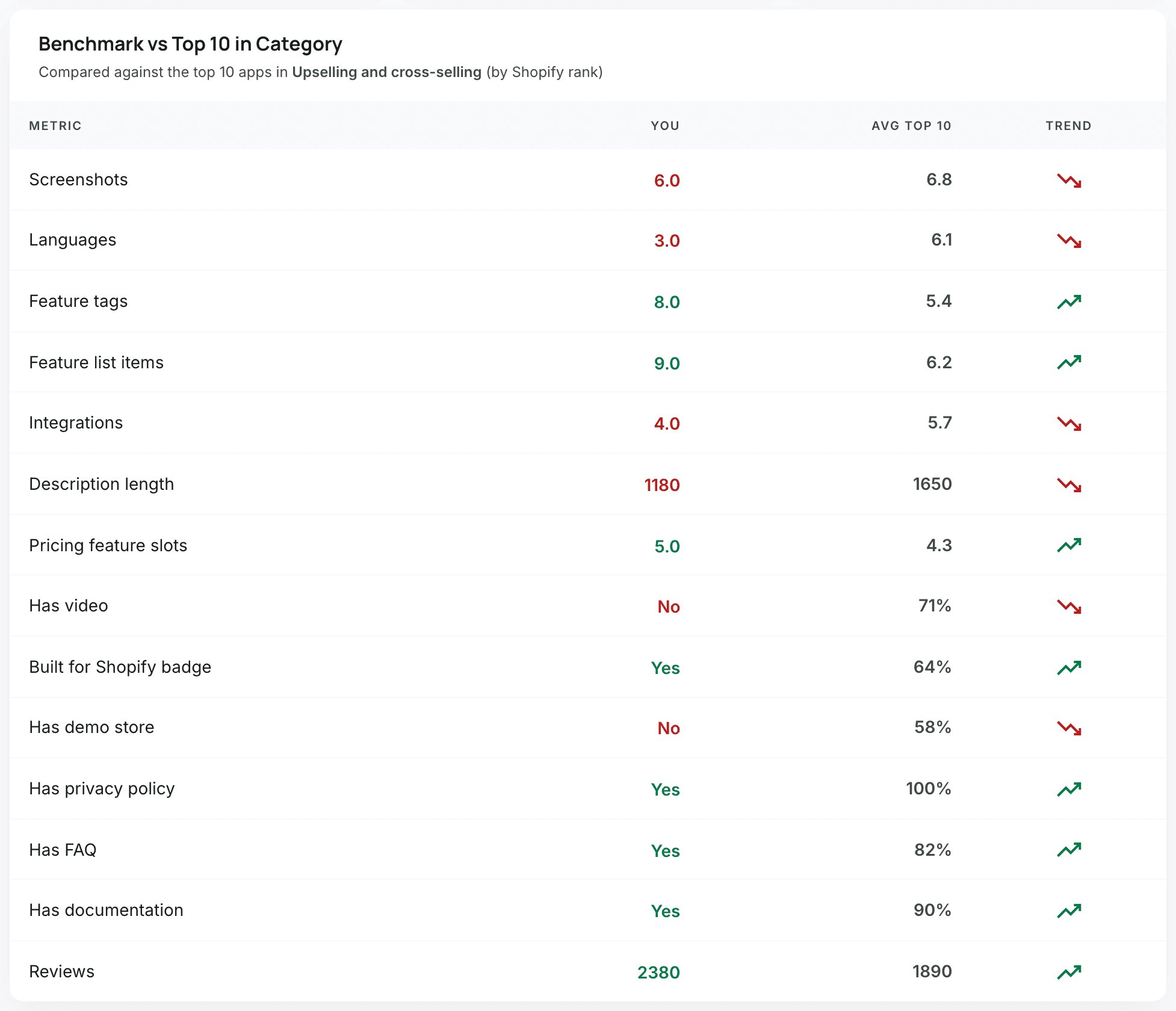
Compare with the top 10 in your category
The benchmark table puts your listing next to the average of the 10 apps ranked highest in your category: screenshots, languages, feature tags, feature list items, integrations, description length, pricing feature slots, reviews, and the share of those apps with a video, the Built for Shopify badge, a demo store, a privacy policy, an FAQ and documentation.
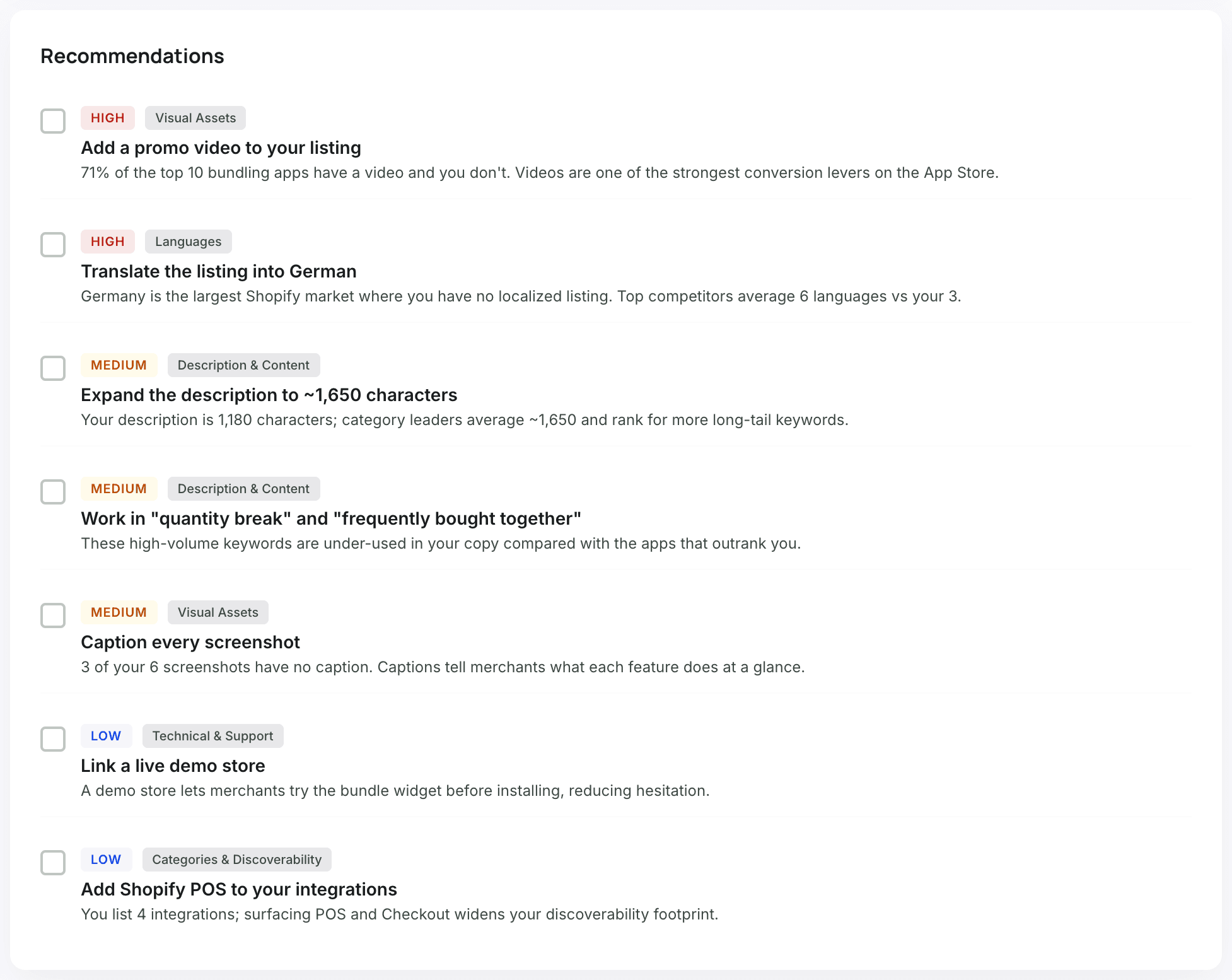
Work through the recommendations
The gaps the audit finds become recommendations, sorted from High to Low impact, each with the evidence behind it. Start at the top and tick each one off as you ship it.
Re-run after each change
Publish your changes in the Partner Dashboard, then run the audit again. Each audit after a listing change is saved, so the score history shows whether your edits moved the score. If nothing changed, you get the same result as last time. Use Export PDF to share the audit with your team.
Frequently asked
Is the listing audit free?
Yes. The full audit, with every check and recommendation, is on every AppStorePulse plan including Free. The public audit at appstorepulse.com/audit scores any app without an account.
What does the audit check?
Six areas: title, description and content, visual assets, categories and discoverability, technical signals such as a privacy policy, demo store, FAQ and documentation, and languages.
Which apps are in the top 10 comparison?
The 10 apps ranked highest on the Shopify App Store in your app's main category, not counting your own app.
How long can my Shopify app name be?
30 characters at most, according to Shopify's App Store best practices. Lead with your brand rather than a generic word or a platform you integrate with.
How many screenshots should a Shopify app listing have?
Shopify recommends 3 to 6 desktop screenshots at 1600 by 900 pixels, including at least one of your app's interface, each with alt text.